> ## Documentation Index
> Fetch the complete documentation index at: https://docs.banya.ai/llms.txt
> Use this file to discover all available pages before exploring further.
# Project Management
> Create projects within your organization and manage per-project settings and members independently.
## What is a Project?
A project is an **independent configuration unit within an organization**. You can create multiple projects inside a single organization and apply different AI model, MCP, RAG, rule, and security settings to each one.
```
Organization
├── Team default settings ← Applied to all projects by default
├── Project A ← Frontend team settings
├── Project B ← Backend team settings
└── Project C ← AI/ML team settings
```
### Team default vs. project settings
| Category | Team default settings | Project settings |
| -------- | -------------------------- | -------------------------- |
| Scope | Entire organization | This project only |
| Priority | Default value | Overrides the team default |
| Example | Org-wide shared lint rules | Frontend-only ESLint rules |
Categories with no project-level settings **automatically inherit the team default settings**. When a project setting exists, it overrides only that specific item.
***
## Creating a Project
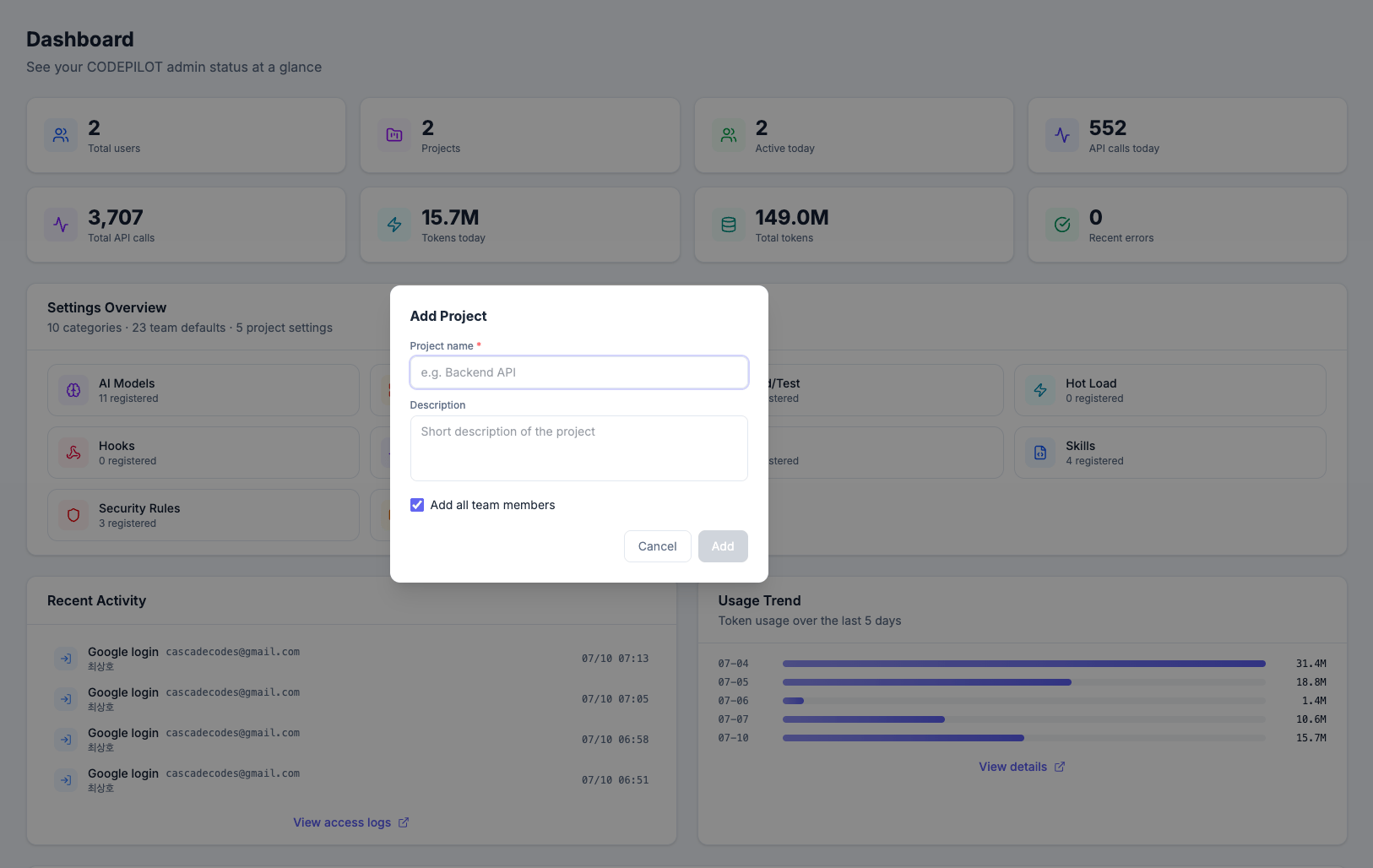 Projects are managed from the **scope selector dropdown** at the top of the sidebar.
Open the dropdown and click **Add project** at the bottom.
Enter the project name and description.
Check **Add all team members** to automatically include every member of the organization. You can adjust this individually later.
Once created, you are automatically switched to the new project.
***
## Switching Projects
Projects are managed from the **scope selector dropdown** at the top of the sidebar.
Open the dropdown and click **Add project** at the bottom.
Enter the project name and description.
Check **Add all team members** to automatically include every member of the organization. You can adjust this individually later.
Once created, you are automatically switched to the new project.
***
## Switching Projects
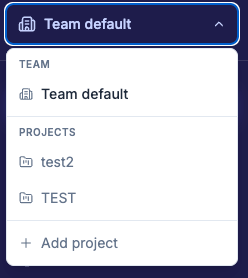 | Selection | Effect |
| ---------------- | ----------------------------------------------------- |
| **Team default** | Manage settings shared across the entire organization |
| **Project name** | Manage the independent settings of that project |
When you select a project, every settings page displays the **settings specific to that project**.
### Sidebar menu changes
In project scope, organization-level menus are hidden.
| Selection | Effect |
| ---------------- | ----------------------------------------------------- |
| **Team default** | Manage settings shared across the entire organization |
| **Project name** | Manage the independent settings of that project |
When you select a project, every settings page displays the **settings specific to that project**.
### Sidebar menu changes
In project scope, organization-level menus are hidden.
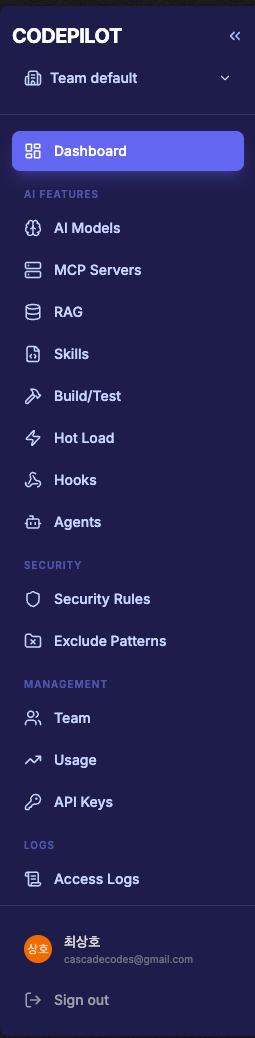
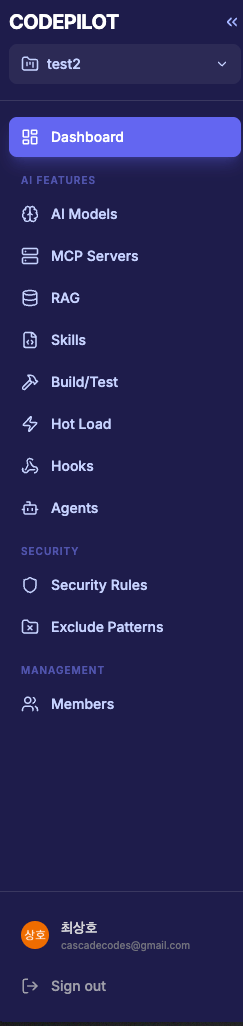 | Menu | Team default | Project |
| -------------------------------------- | :----------: | :-------------------------------: |
| Dashboard | O | O |
| AI Models · MCP Servers · RAG · Skills | O | O |
| Build/Test · Hot Load · Hooks · Agents | O | O |
| Security Rules · Exclude Patterns | O | O |
| Team | O | O (switches to Member management) |
| Usage Monitoring | O | X |
| API Keys | O | X |
| Access Logs · Error Logs | O | X |
Usage Monitoring, API Keys, and logs are **organization-wide** features, so they are not shown in project scope.
***
## Managing Per-Project Settings
In project scope, a read-only **team default settings** panel is shown above each settings page. This lets you compare inherited settings and project-specific settings at a glance.
| Menu | Team default | Project |
| -------------------------------------- | :----------: | :-------------------------------: |
| Dashboard | O | O |
| AI Models · MCP Servers · RAG · Skills | O | O |
| Build/Test · Hot Load · Hooks · Agents | O | O |
| Security Rules · Exclude Patterns | O | O |
| Team | O | O (switches to Member management) |
| Usage Monitoring | O | X |
| API Keys | O | X |
| Access Logs · Error Logs | O | X |
Usage Monitoring, API Keys, and logs are **organization-wide** features, so they are not shown in project scope.
***
## Managing Per-Project Settings
In project scope, a read-only **team default settings** panel is shown above each settings page. This lets you compare inherited settings and project-specific settings at a glance.
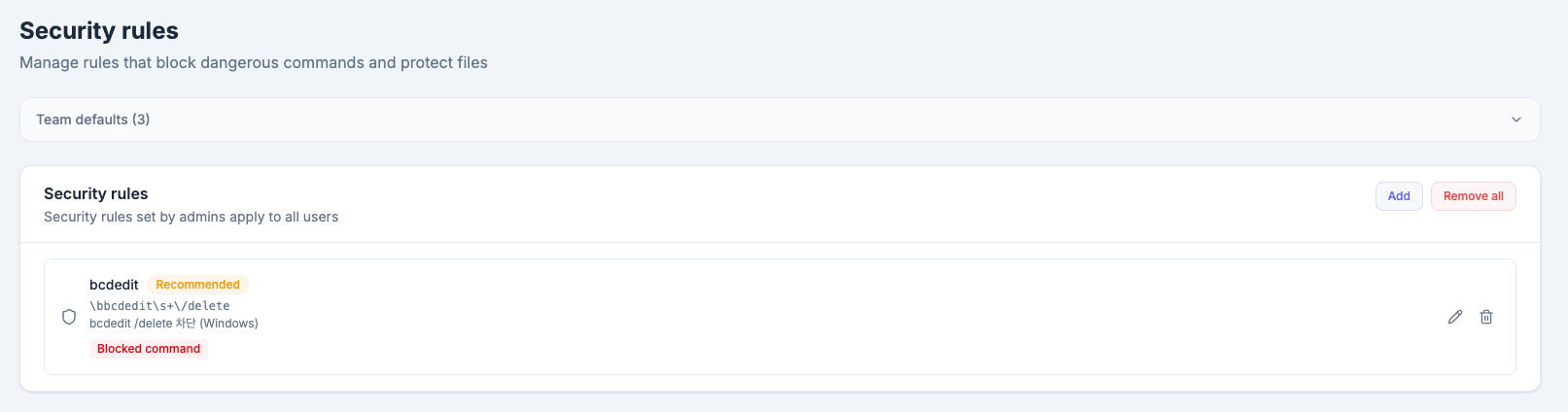 To edit the team default settings, switch to **Team default** in the dropdown.
When you first create a project, its settings are empty. Because the team default settings are inherited automatically, you only need to add the **items that require project-specific customization**.
***
## Managing Project Members
To edit the team default settings, switch to **Team default** in the dropdown.
When you first create a project, its settings are empty. Because the team default settings are inherited automatically, you only need to add the **items that require project-specific customization**.
***
## Managing Project Members
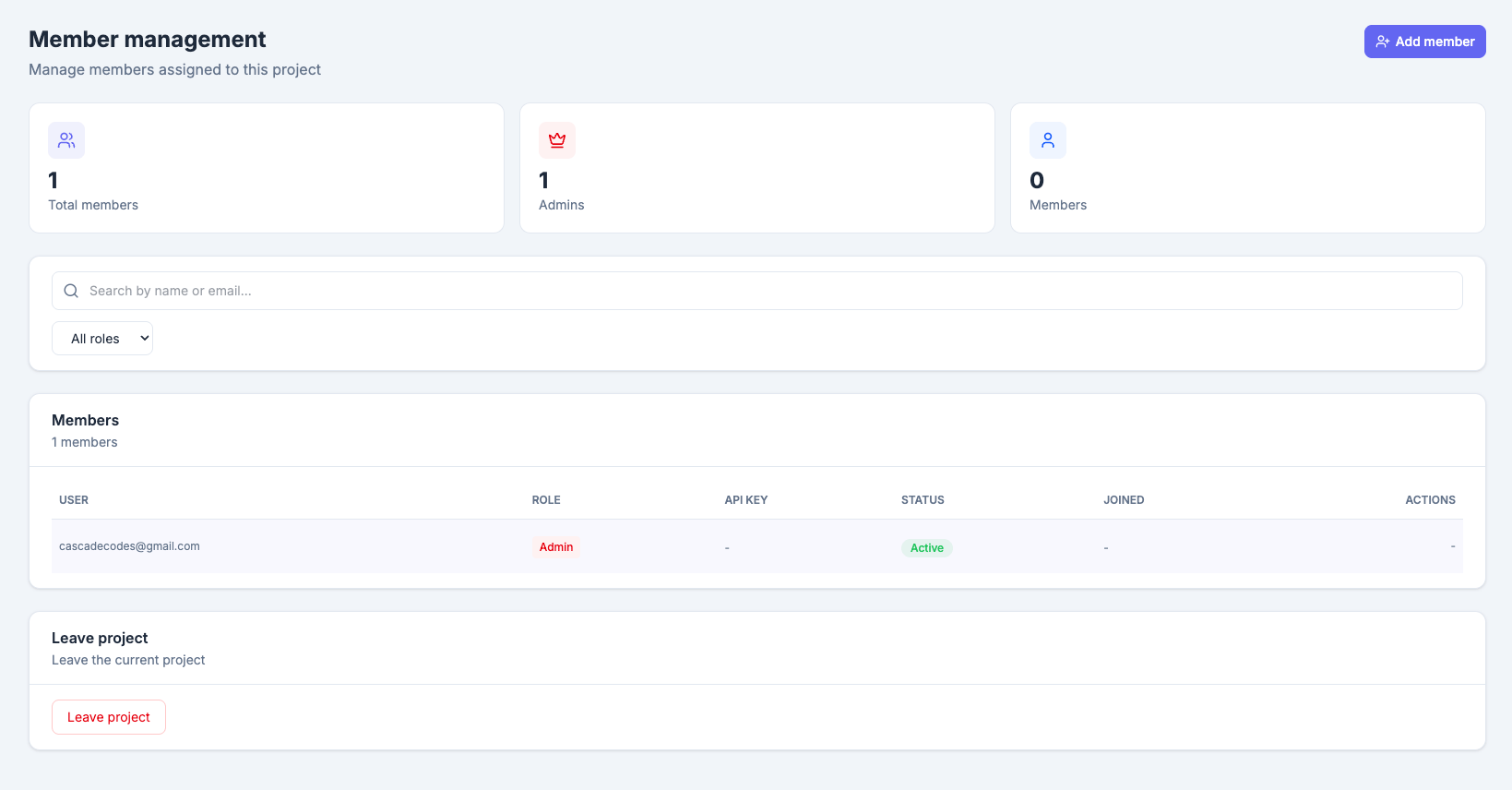 In project scope, the **Team** menu changes to **Member management**.
* **Add member** — Search the organization member list and add them to the project
* **Remove member** — Remove them from the project only (they are not removed from the organization)
* **Leave project** — Leave the project yourself
A member removed from a project no longer receives that project's settings in the IDE. They are not removed from the organization itself.
***
## Editing / Deleting a Project
Hover over a project in the dropdown to reveal the edit and delete icons.
| Action | Description |
| ---------- | ---------------------------------------------------- |
| **Edit** | Change the project name and description |
| **Delete** | Delete the project and all project-specific settings |
Deleting a project also deletes **all of its settings, RAG sources, and member associations**. This cannot be undone. You must type the project name exactly to confirm.
In project scope, the **Team** menu changes to **Member management**.
* **Add member** — Search the organization member list and add them to the project
* **Remove member** — Remove them from the project only (they are not removed from the organization)
* **Leave project** — Leave the project yourself
A member removed from a project no longer receives that project's settings in the IDE. They are not removed from the organization itself.
***
## Editing / Deleting a Project
Hover over a project in the dropdown to reveal the edit and delete icons.
| Action | Description |
| ---------- | ---------------------------------------------------- |
| **Edit** | Change the project name and description |
| **Delete** | Delete the project and all project-specific settings |
Deleting a project also deletes **all of its settings, RAG sources, and member associations**. This cannot be undone. You must type the project name exactly to confirm.