

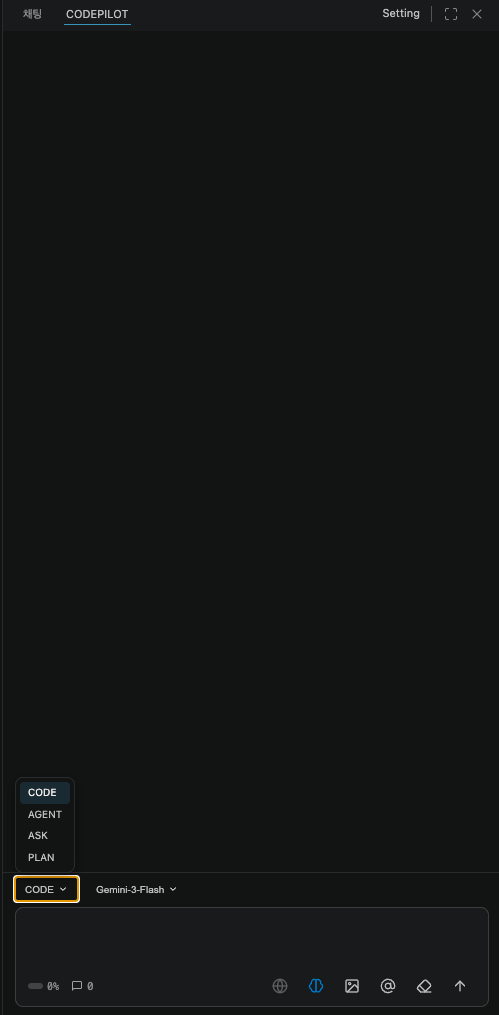

CodePilot IDE offers four chat modes for different purposes. You can switch between them at any time from the dropdown to the left of the input box. Mode selection dropdown
ModeFile ChangesCommand ExecutionOne-line Summary
CODEOOPerforms the requested task directly
AGENTOOGive it a goal and it breaks the work down on its own
ASKXXAsk questions and get answers
PLANXXDraft a plan before execution

CODE Mode

CODE mode The default mode that creates, modifies, and deletes files directly and runs terminal commands. It follows a set procedure (investigate → execute → review), and after editing files it is prompted to verify the changes with build/test commands.

When to use it

  • Implementing new features, fixing bugs, refactoring
  • Initial project setup (installing packages, creating configuration files)
  • Writing test code
  • Bulk-editing repetitive code patterns

Examples

Create a useAuth custom hook in the src/hooks/ directory.
Include JWT token storage, login/logout, and automatic token refresh.
Review the entire src/api/ directory and add try-catch blocks to any API calls that are missing error handling.
Actual files are modified. You can control changes with Keep / Undo in the inline diff, but check your Git commit status before any important work.

AGENT Mode

AGENT mode Give it a goal and it breaks the work into the necessary tasks on its own, spawning subagents to handle them in parallel when needed. If CODE mode is about “doing the assigned work following a set procedure,” AGENT mode is closer to “making its own judgment calls until the goal is achieved.”
CODEAGENT
Task orderFollows a set procedure (investigate → execute → review)The AI decides on its own
Helper agentsNoneSpawns them itself for parallel work when needed
Build verificationRecommended (the model decides to run it)Required (must verify after editing files)
SpeedStableFast, more dependent on model quality

When to use it

  • Large tasks spanning multiple files and multiple layers
  • Tasks where the AI needs to decide where to start
  • When you want to delegate implementation through testing and verification in one go

Examples
Add a refund feature to the payment module, write the related tests, and then run the full test suite.
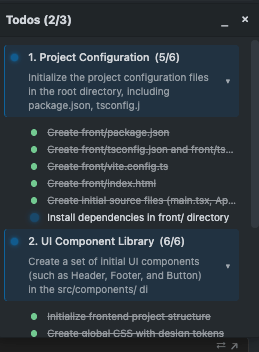
You can track progress in real time from the task list in the chat panel. Task progress
If you use a frontier model, we recommend AGENT mode.The latest high-performance models excel at deciding task order and when to verify on their own. They produce better results in AGENT mode, which defers to the model’s judgment, than in CODE mode, which follows a set procedure.
AGENT mode relies on the AI’s autonomous judgment. If you are using a lightweight or local model and need stable, predictable results, use CODE mode.

ASK Mode

ASK mode A mode for asking questions and getting answers without modifying any files.

What you can do

  • Explain and analyze code
  • Discuss design direction
  • Analyze the cause of errors
  • Request code review feedback

When to use it

  • When getting to know an unfamiliar codebase for the first time
  • When you want to understand how a specific function or class behaves
  • When you want review feedback only, without changing any code

Examples

@src/auth/session.ts Explain what this file does. Focus on the main functions and the data flow.
Point out any security weaknesses in the current authentication structure. Don't make changes — just analyze.

PLAN Mode

PLAN mode A mode that first establishes an implementation plan without modifying any files. After reading and analyzing the codebase, it produces a plan that outlines the files to be changed, the implementation steps, and the anticipated risks. The plan isn’t just shown in chat — it’s also saved as a file in your project. It’s saved immediately, regardless of whether you approve it, so you can reopen it later or share and commit it with your team.
<project root>/.codepilot/plans/plan-2026-07-10-142530.md
The numbers in the filename are the save time (YYYY-MM-DD-HHMMSS). A new file is created each time you draft a plan; if you open and refine an existing plan, that file is updated instead.

When to use it

  • When you want to understand the scope of impact before implementing a large feature
  • When changes across multiple files are expected
  • When you want to share the plan with teammates and have it reviewed before executing

Examples

I want to add a payment system. How should I implement Stripe integration, storing payment history, and refund processing?

Reviewing the plan, then executing

The essence of PLAN mode is the flow of reviewing the plan and then executing it.
1

Draft a plan in PLAN mode

When you request the feature you want, the AI explores the codebase and produces a plan.
2

Review and adjust the plan

Check the files to be changed and the implementation steps. If needed, refine the plan with follow-up questions.
In step 3, wouldn't it be better to create a new router instead of modifying the existing one?
3

Switch to CODE mode and execute

Switch the mode to CODE and request execution. The plan remains in the previous conversation, so it carries over seamlessly.
Implement it according to the plan above.

Which mode should you choose?

You know what to change

CODE — Fastest when your instructions are specific

You only have a goal

AGENT — When you want to delegate the task breakdown too

You don't know the code yet

ASK — For safely exploring and understanding

You're worried about the scope of impact

PLAN — When you want a review before executing

Based on the model you’re using

Model in useRecommended modeWhy
Frontier model (latest high-performance commercial model)AGENTIt decides task breakdown and verification timing well on its own
Lightweight or local modelCODEIt follows a set procedure, so results are stable
You can change the default mode in Settings → GeneralDefault Mode.