

In one line
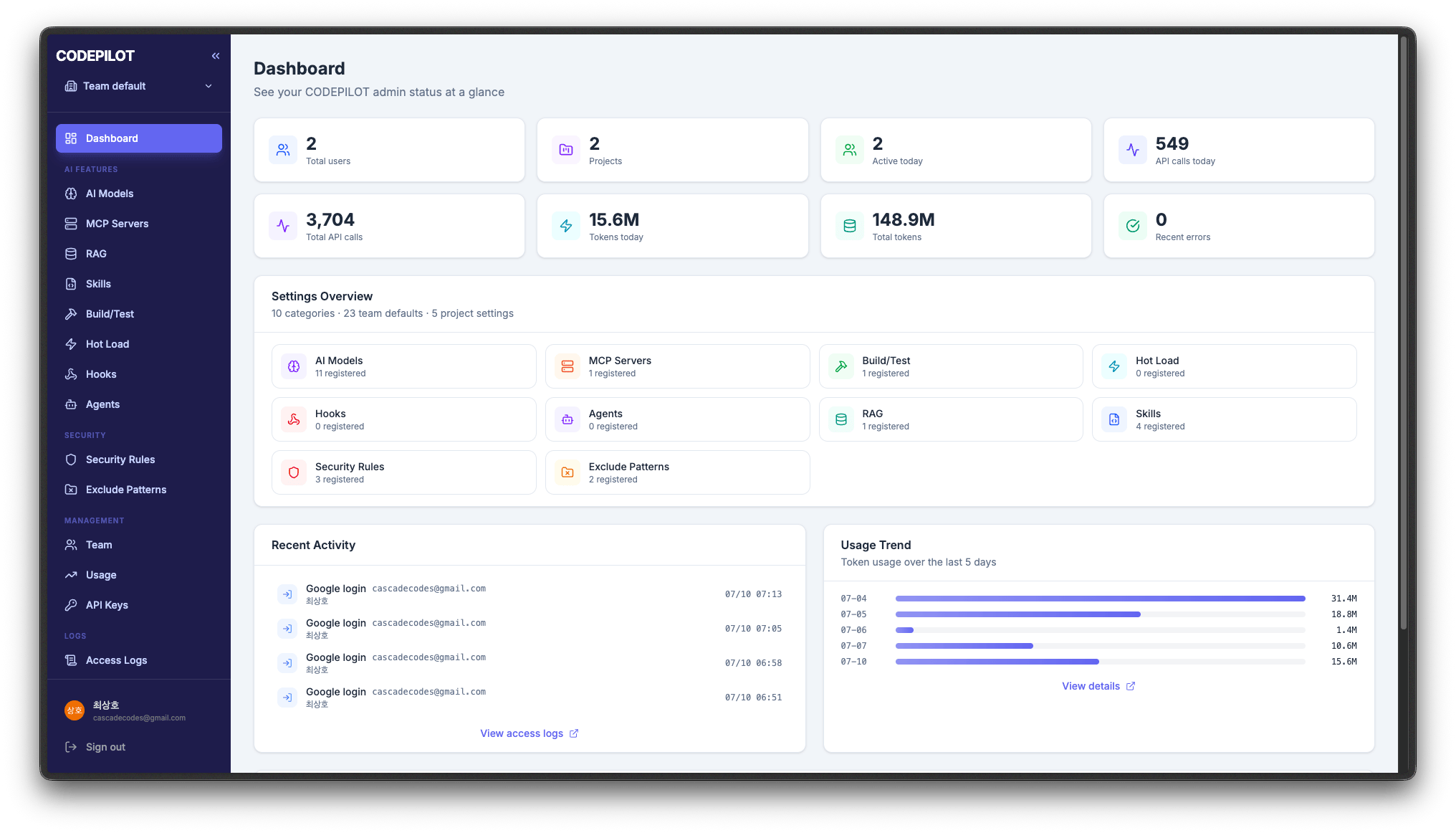
“The control tower for your company’s AI development environment”CodePilot Admin is a unified management console that helps your organization run AI development tools safely and consistently. It turns the AI that each developer uses in their own way into a “team asset that meets company standards.”
Why do you need Admin?
By bringing policy management, operational monitoring, and access control together in one place, CodePilot Admin gives enterprises the foundation to adopt AI organization-wide with confidence.
Who uses it?
Only users with administrator privileges can access the Admin console. Regular members never enter the console; instead, they join from the IDE with an organization API key and have policies applied to them.Getting started
1
Sign in or sign up
Go to https://codepilot.banya.ai and sign in with an administrator account. On-premises environments use their own internally deployed address.
2
Enter your license key
After signing in, enter the organization license key you were issued.
3
Create an organization
When you create a new organization, you automatically receive administrator privileges.
4
Issue an API key
Issue the API key that members will use to join the organization from the IDE.
5
Configure policies
Register your AI models, security rules, and coding conventions.
Sign in and register an organization
From accessing the console to creating an organization and inviting members
Main menus
Team default vs. Project
Settings are organized into two levels: Team default and Project.- Team default — common settings applied across the entire organization
- Project — settings that apply only to a specific project; anything not set is inherited from the Team default
Project management
Creating, switching, and managing members for projects