

Sign in
Open the Admin console in your browser and the sign-in screen appears.Open the CodePilot Admin console
Organizations running on-premises use their own internally deployed address rather than the one above. Ask your organization administrator if you don’t know it.
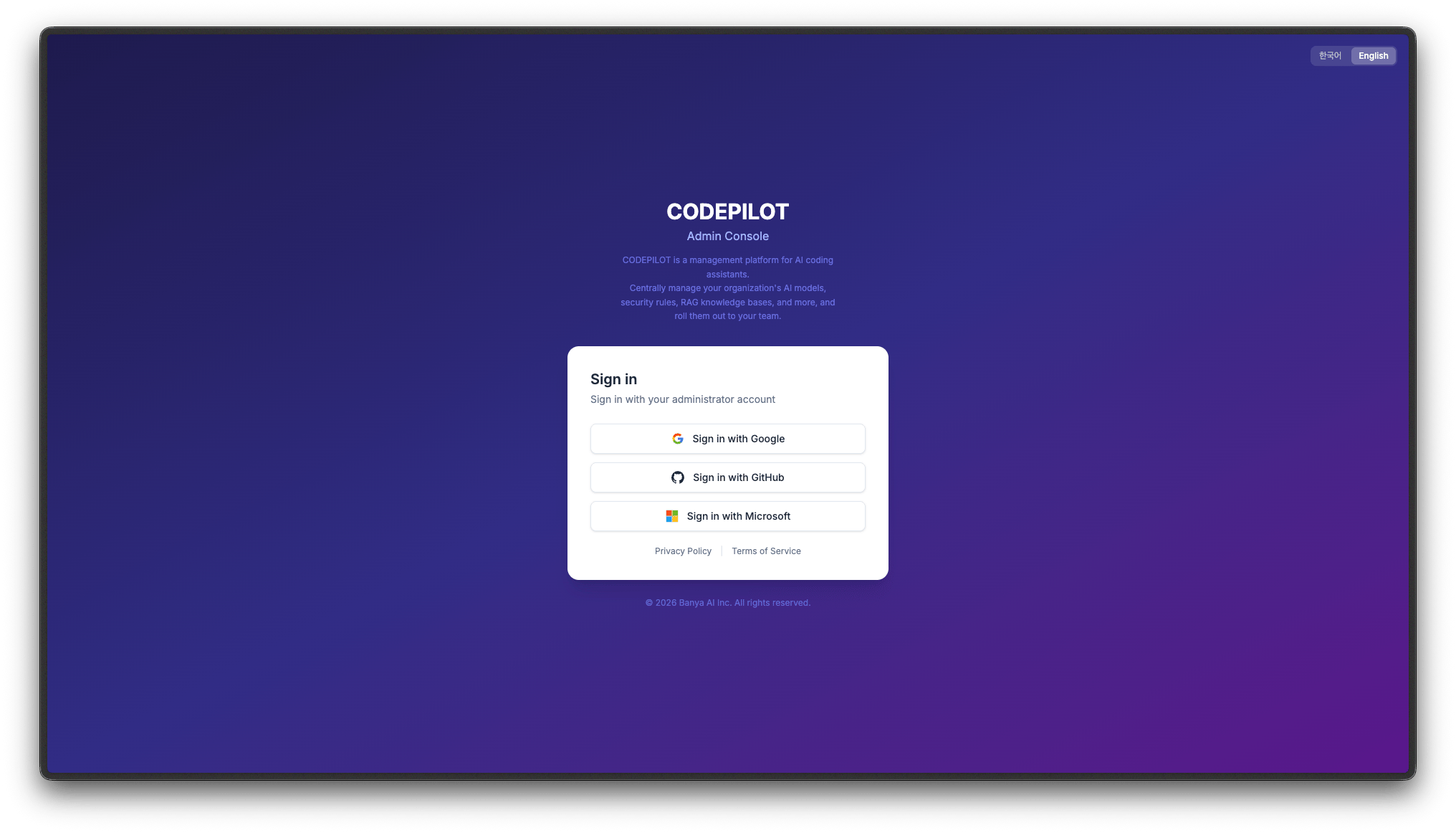
License key entry
Once you finish signing in, the License key entry screen appears. You must enter the license key you were issued before you can move on to registering an organization.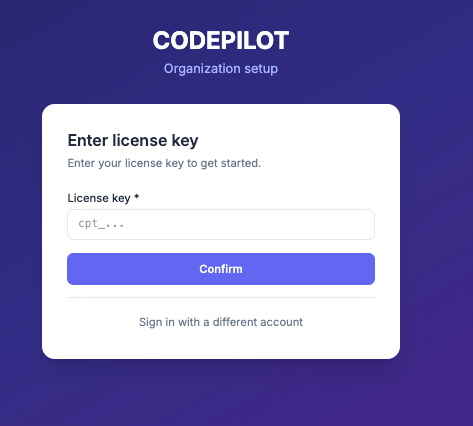
1
Get your license key ready
Have the organization license key starting with
cpt_ that you received at onboarding at hand.2
Enter the key
Paste the license key into the input field and click Confirm.
3
Continue to organization registration
Once the key is verified, you move on to the organization setup screen.
If you never received a license key, or yours has expired, contact your onboarding contact. IDE users also enter a license key after social login, so make sure you know which key to distribute to your members.
Register an organization
After license key verification, if your signed-in account does not belong to an organization, the organization setup screen appears. You have two options.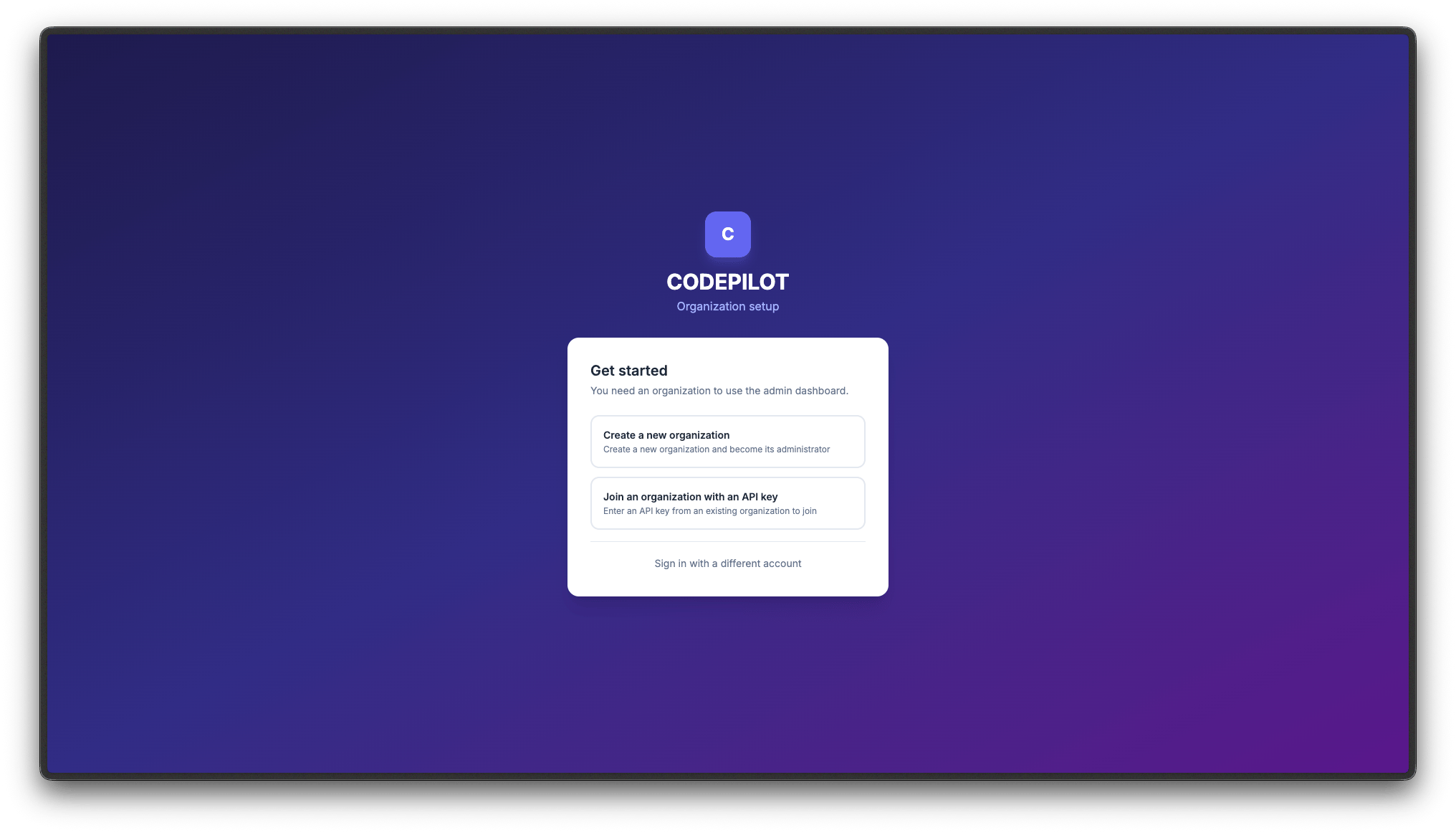
Create a new organization
Choose this if you are the administrator creating the organization for the first time. When you create it, you automatically receive administrator privileges.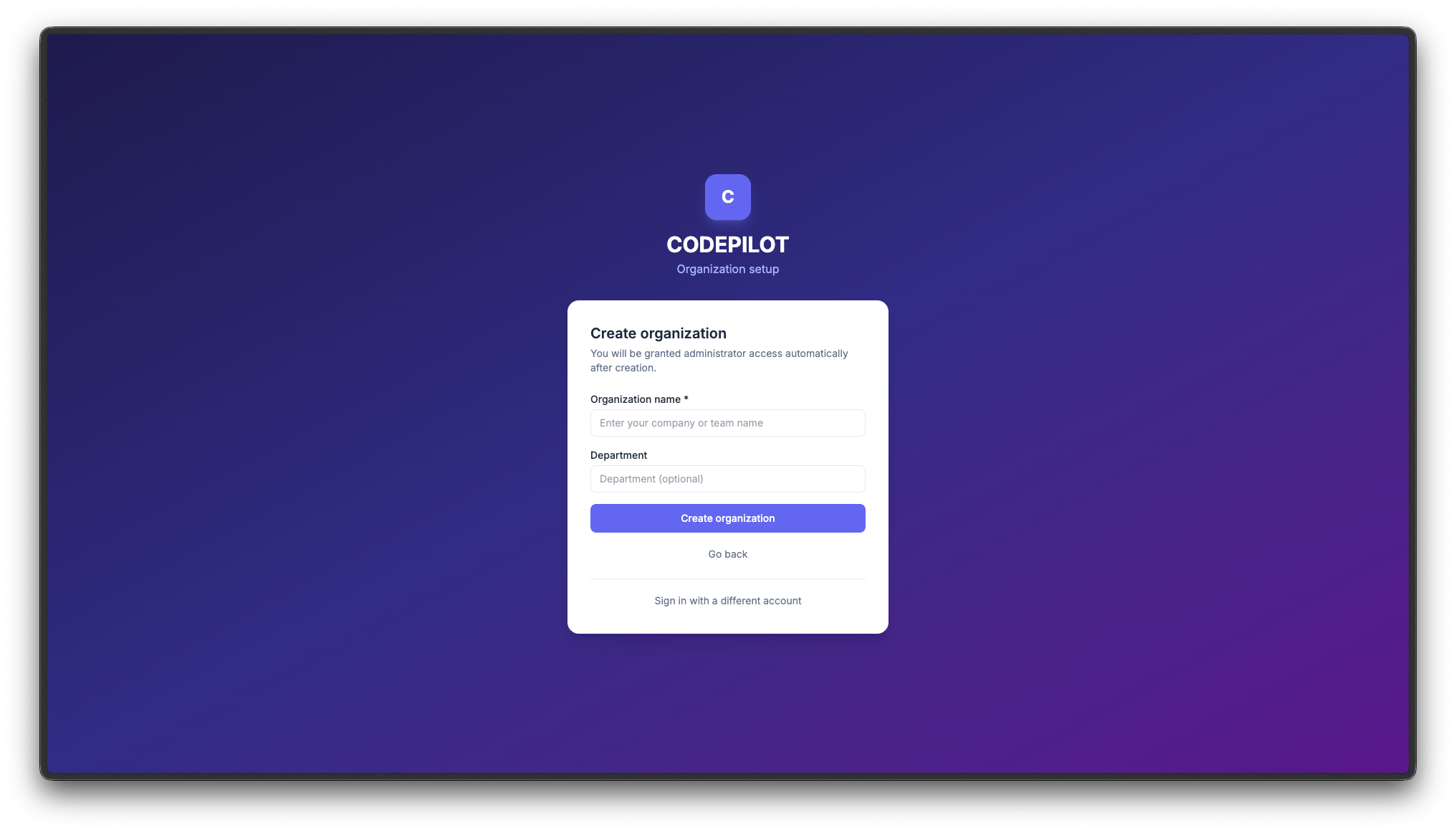
Depending on the environment configuration, an organization may enter an Approval pending state after it is created. In that case, a waiting screen is shown until approval is complete.
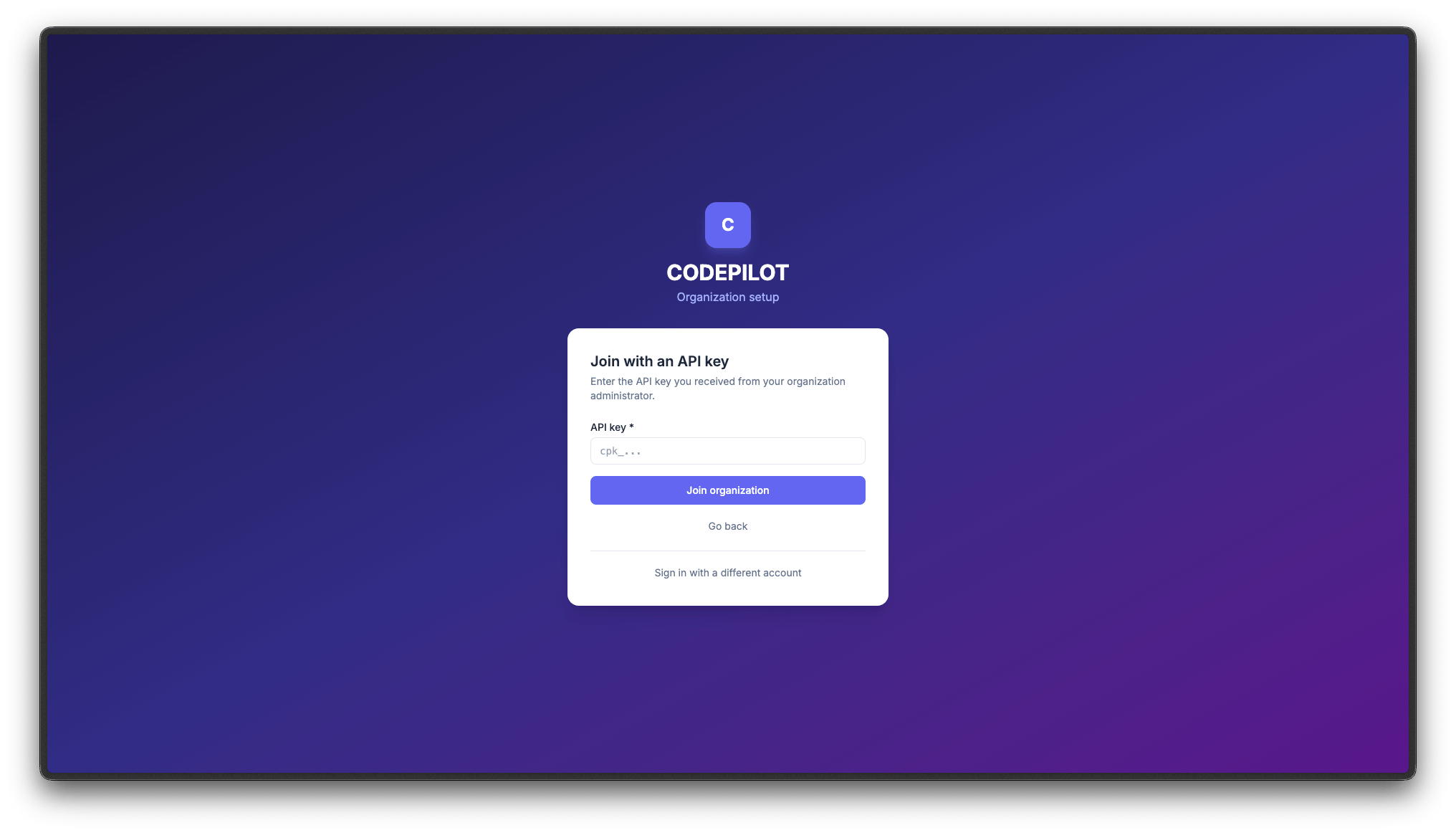
Join an organization with an API key
Choose this to join an organization that already exists. Enter the API key starting withcpk_ that you received from your administrator.
Approval status
After you request to join an organization, a waiting screen is shown while you await administrator approval.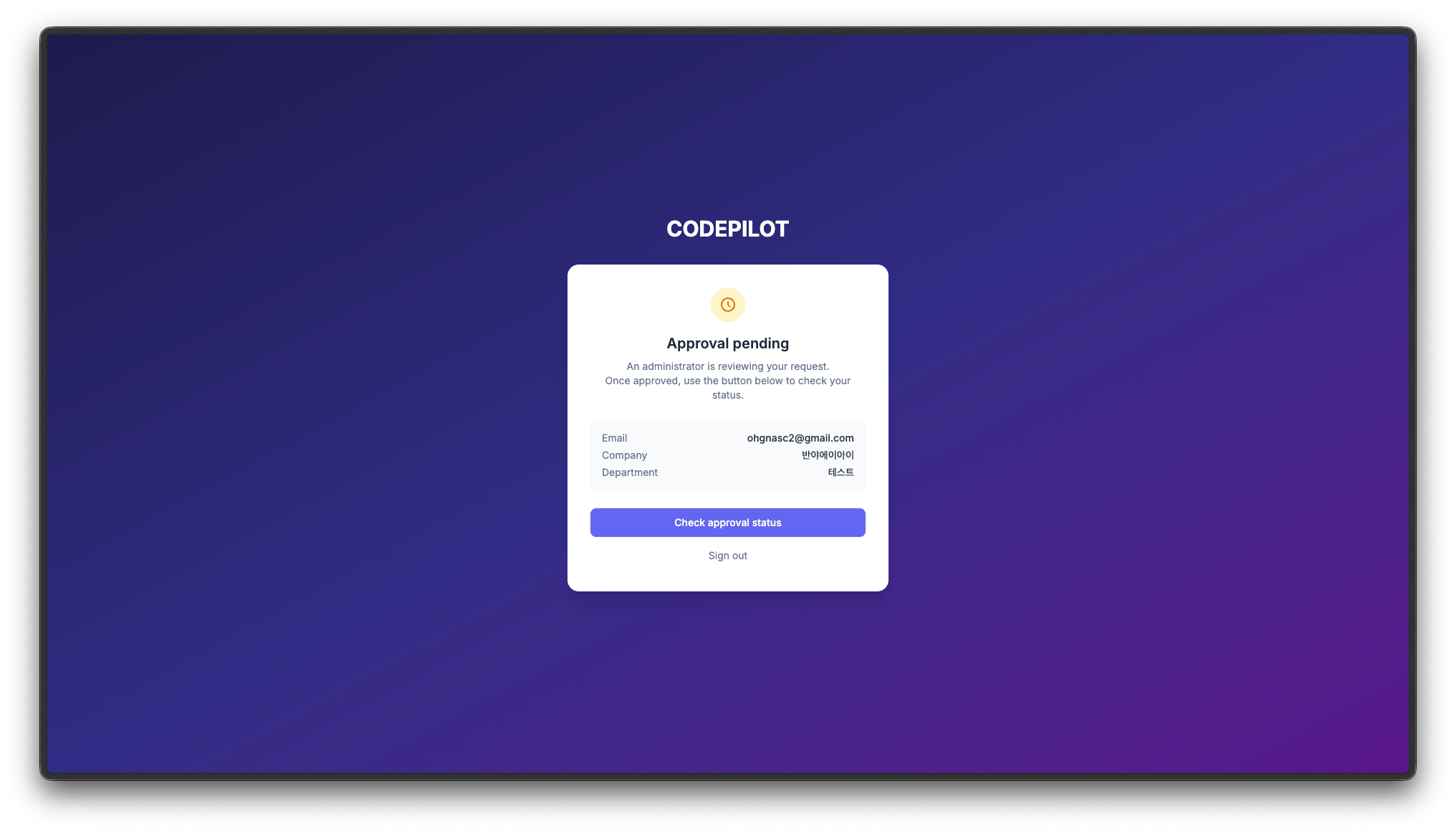
Only admins and owners can access the Admin console. If a regular member signs in, an insufficient-permissions notice is shown. Members use the product by joining with the organization API key from the IDE rather than the console.
Distributing API keys to members
To join an organization from the IDE, members need an organization API key. Administrators issue these keys and distribute them.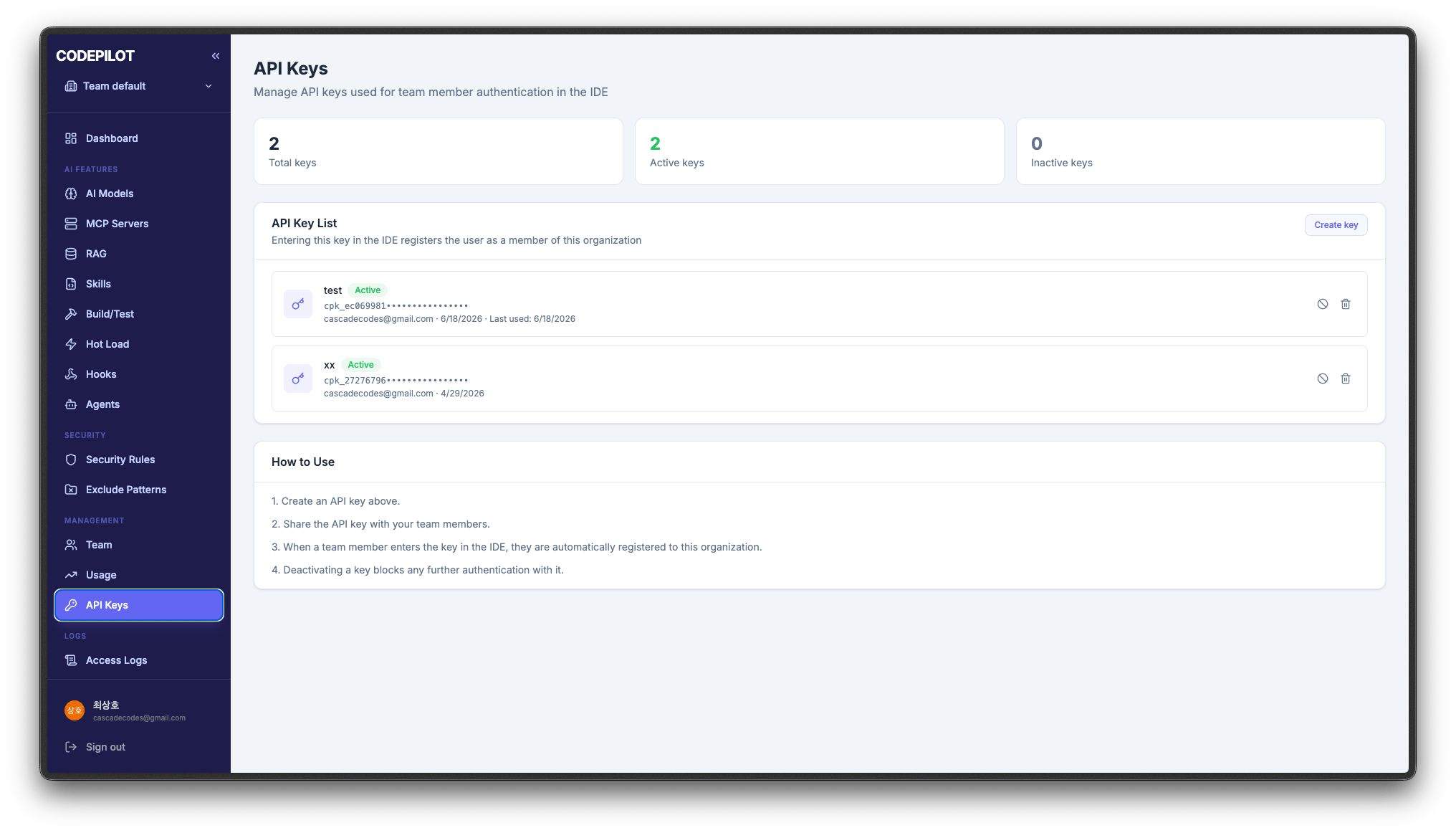
1
Go to the API Keys menu
Navigate to Management → API Keys in the sidebar.
2
Create a key
Click Create key and enter a key name. Issuing separate keys per team or purpose makes them easier to manage.
3
Copy the key
The full key is shown only once, right after creation. Copy it now.
4
Share it with members
Members join by entering this key under IDE Settings → Account → Organization connection.
Managing members
Manage organization members under Management → Team in the sidebar.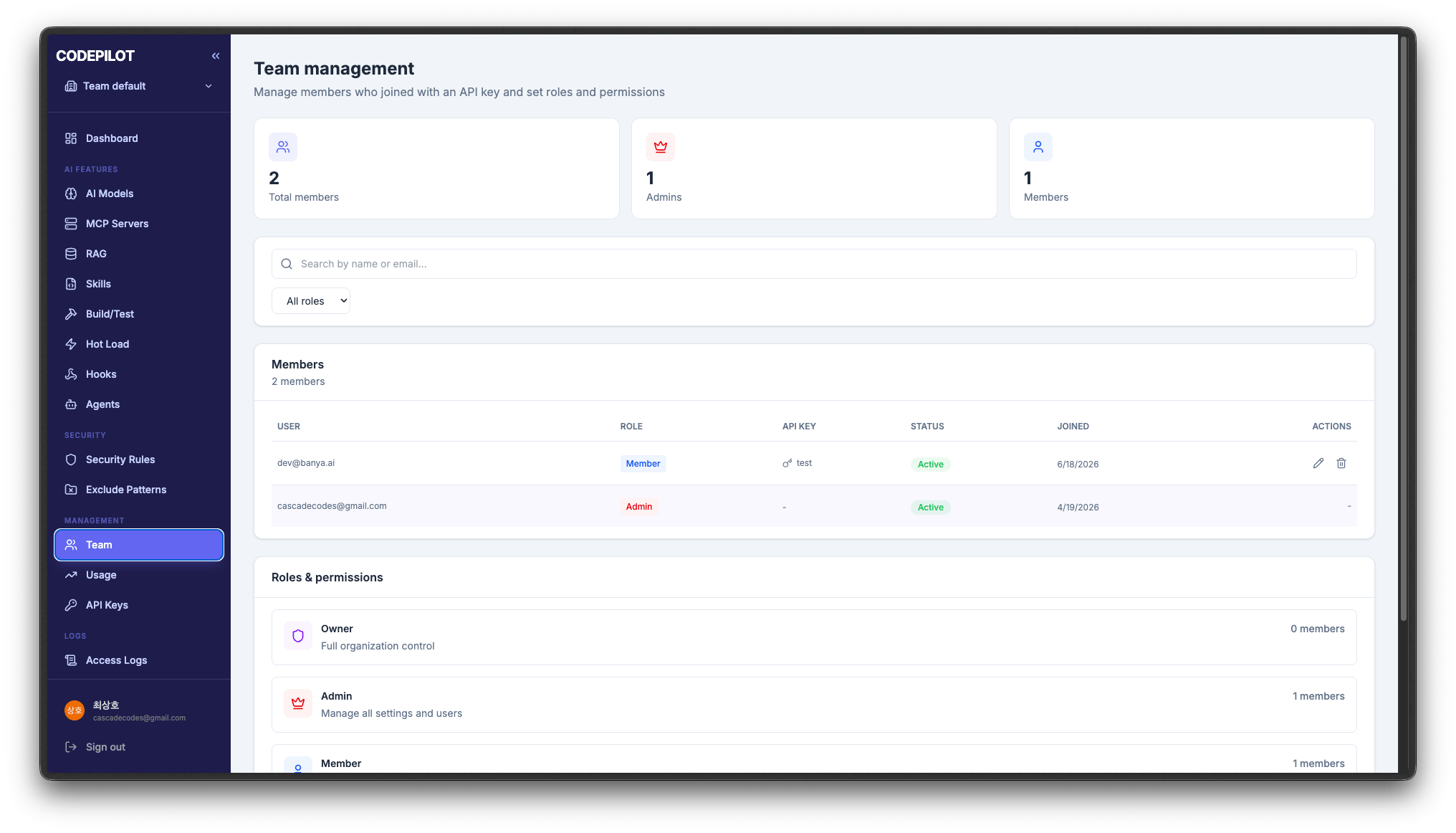
My Profile
Click your profile at the bottom of the sidebar to view your account details and change the console language and password.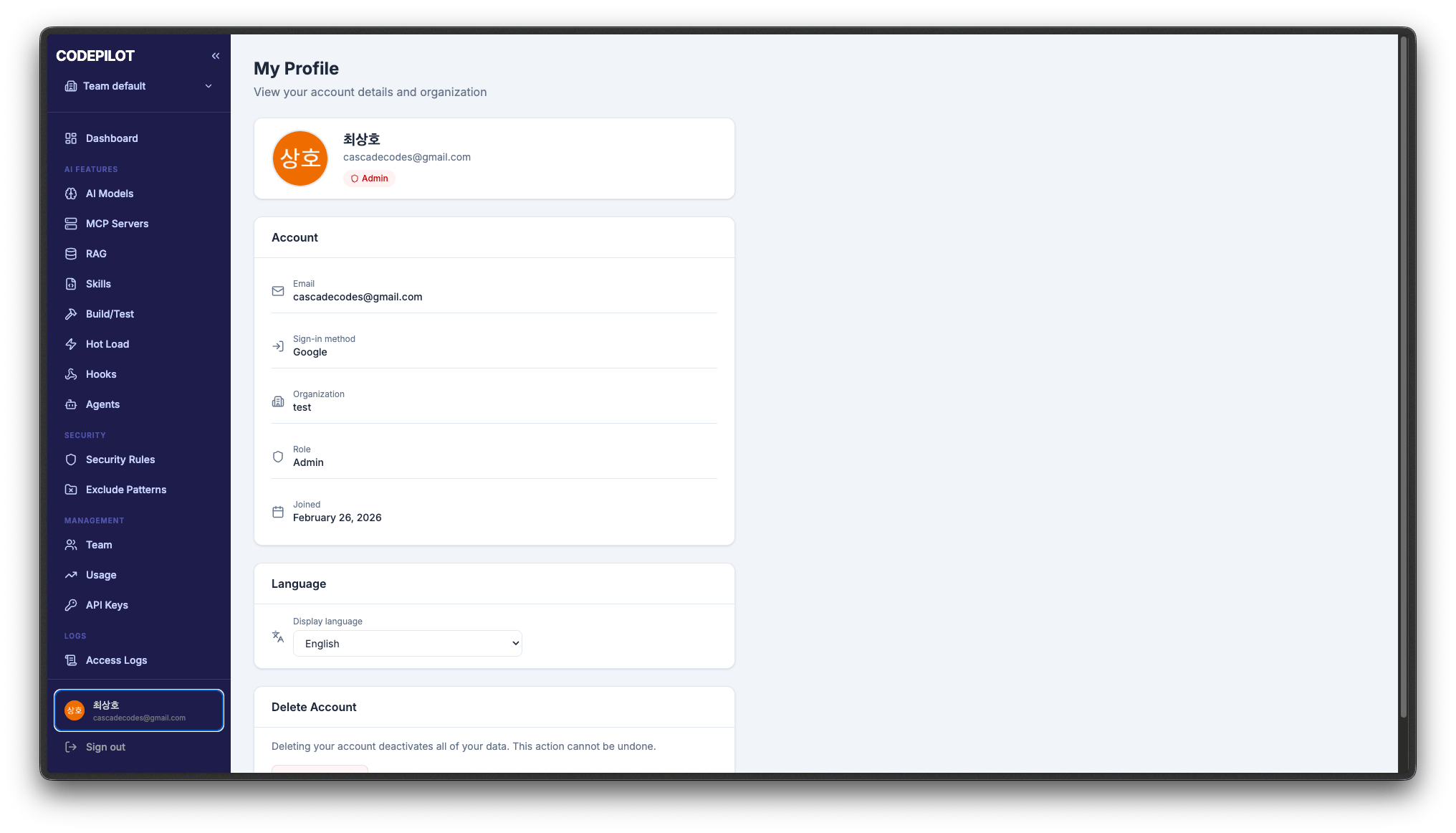
Next steps
Project management
Create projects and separate their settings
Configure policies
Register AI models, security, and coding rules