
Click the gear (⚙) icon at the top right of the chat panel to open the settings screen. Settings screen
When connected to an Organization, items the administrator has deployed as Required cannot be changed. These are the items marked with a lock icon.

Account
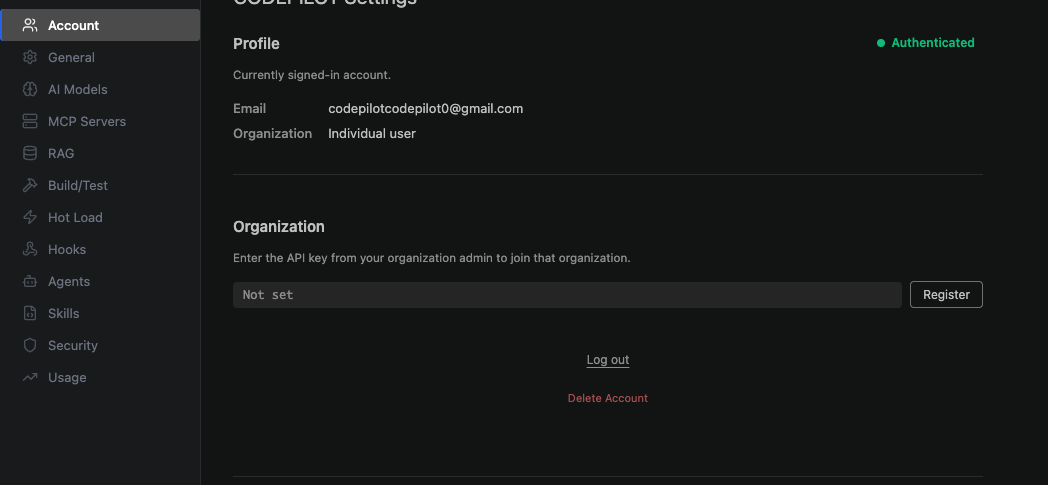
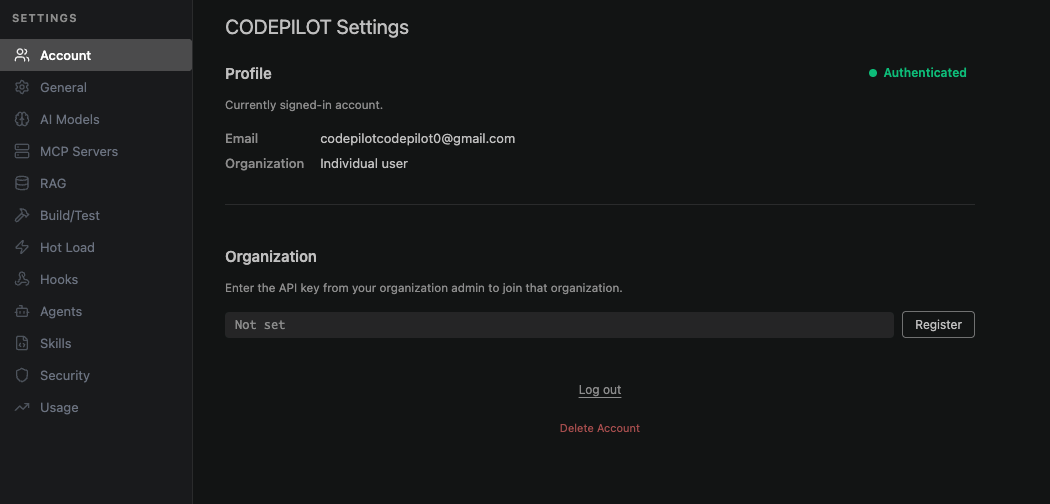
Account settings This screen shows your login status and the Organization you belong to, and handles joining an Organization and selecting a Project.
ItemDescription
ProfileLogin account, Organization membership, authentication status
Organization connectionRegister an Organization API key (cpk_...) and leave the Organization
ProjectSelect the Project to work on
Sync organization settingsRe-fetch the latest policies from the server
For detailed steps, see the Organization connection doc.

General
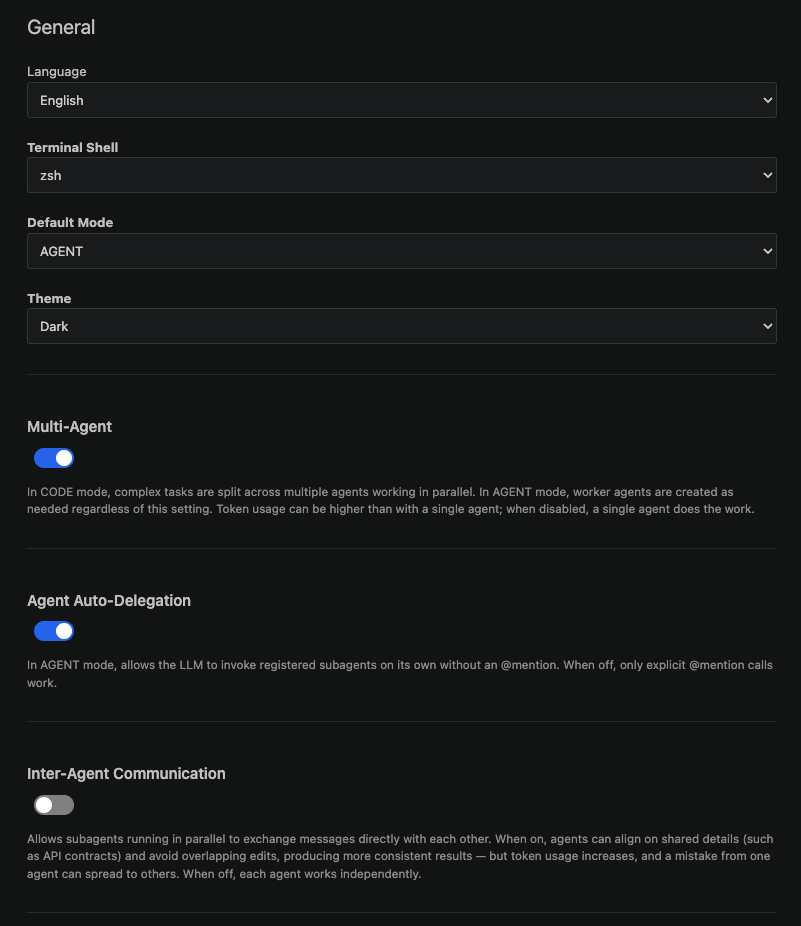
General settings

Language / Theme / Default Mode

ItemDescription
LanguageAI response language (Korean / English)
ThemeDark / Light / Follow VS Code setting
Default ModeThe mode selected when a chat starts

Auto-execution permissions

Determines whether the AI asks for confirmation or runs immediately before it modifies files or executes commands.
SettingWhen ONWhen OFF
Auto-run toolsThe AI runs tools immediatelyAsks for approval before running
Auto-update filesApplies changes immediatelyApprove after reviewing the diff
Auto-run commandsRuns terminal commands immediatelyConfirm before running
If you’re using it for the first time, start with Auto-run tools and Auto-run commands turned OFF. We recommend turning them on only after you’ve built trust by observing what the AI does.

Other

  • Inline code completion — Tab completion while typing (OFF by default)
  • Next-task suggestions — Suggests follow-up tasks after a task completes
  • Web search — Reflects web search results in answers
  • Credential protection — Inspects responses so that secret keys aren’t exposed
  • Export / import settings — Back up and restore settings as a JSON file

AI Models
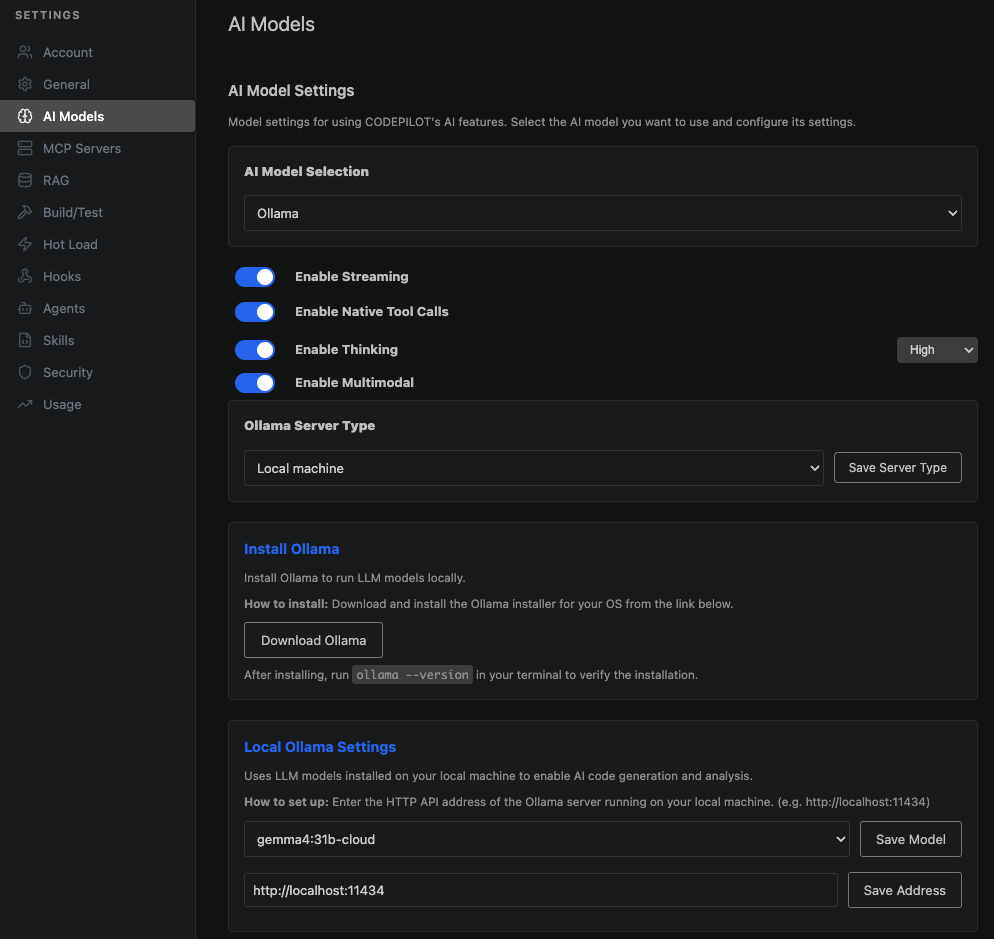
AI Models settings

Selecting the main model

Choose the default model to use for chat.
TypeCharacteristics
Cloud modelHigh performance, requires internet, incurs cost
Local modelFree, works offline, speed varies with your PC’s specs
When connected to an Organization, only models approved by the administrator appear in the list.

Response options

OptionDescription
StreamingDisplays the answer as it’s generated
ThinkingReason more deeply (Low / Medium / High / Max)
MultimodalSupports image and PDF attachments

Registering a personal API key

Besides the Organization’s models, you can register a personal API key and use it at your own expense. Enter the key issued by the provider on this screen.

Assigning models by purpose

You can assign a different model to each type of task. Assigning a lightweight model to simple tasks improves both cost and response speed.
PurposeRecommended
Conversation compactionLightweight model
Command executionMain model
Intent analysisLightweight model
Error recoveryA model different from the main model
Inline code completionLightweight local model

MCP Servers

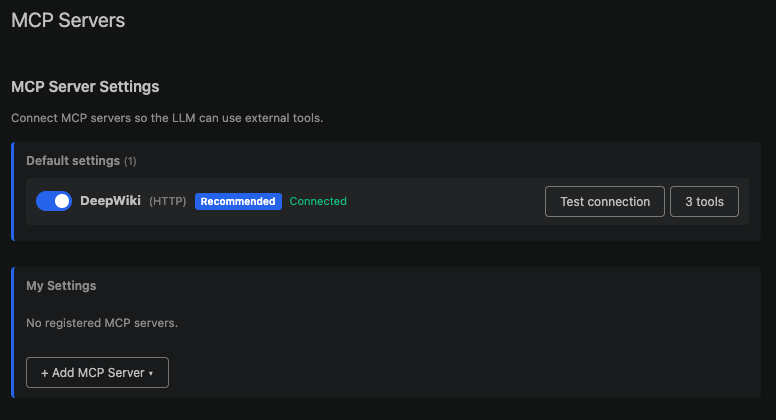
MCP Servers settings Connect external tools such as GitHub, Jira, and in-house systems so the AI can operate them directly.
  • Local connection — Tools that run on your own PC
  • Remote connection — An external MCP server URL
Authentication supports API keys or OAuth.
If your Organization administrator pre-registers MCP servers, you can use them right away with no additional setup.

RAG (Internal Documents)
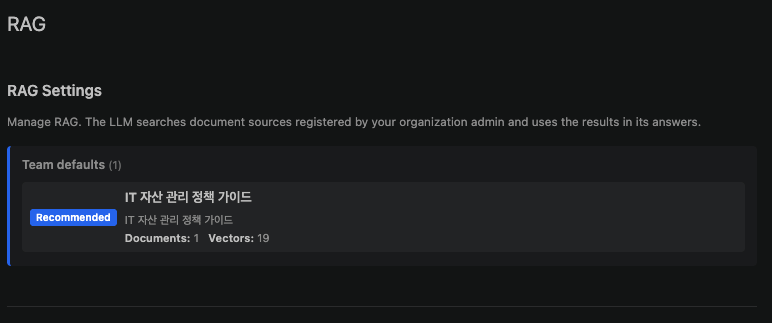
RAG settings View the list of internal documents the administrator registered in the CodePilot Admin console. During chat, relevant documents are automatically searched and reflected in answers. Since document registration and indexing are performed by the administrator, in the IDE you only view which documents are connected.

Build/Test

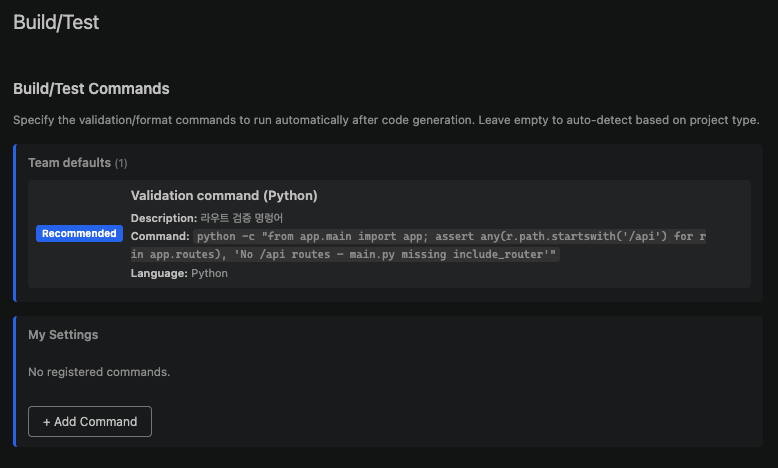
Build/Test settings Specify the verification commands to run automatically after writing or fixing code.
ProjectExample commands
Node.jsnpm test, npm run lint, npm run build
Pythonpytest
Java (Maven)mvn verify
Java (Gradle)./gradlew test
If left empty, the project type is detected and commands are chosen automatically. If verification fails, the AI analyzes the cause, applies a fix, and verifies again.

Hot Load
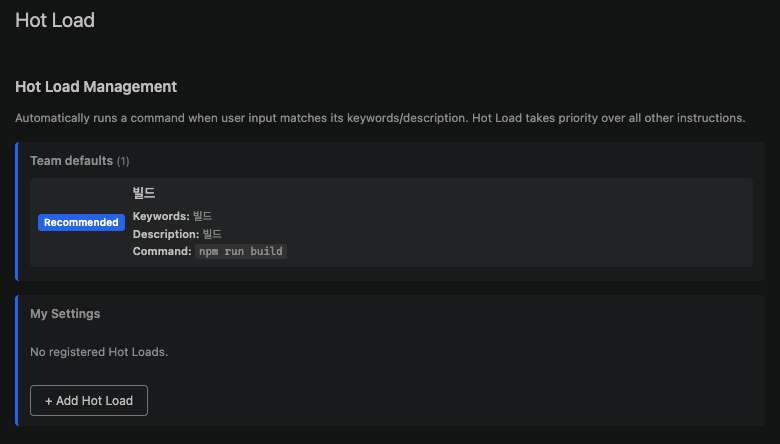
Hot Load settings Register frequently used tasks as keywords, and when you type a sentence containing that keyword in the chat, the registered command runs.
Keyword:      deploy, release
Description:  Run a production deployment
Command:      ./scripts/deploy.sh production
You can also specify a completion condition (exit code, output string, or file existence), the number of retries, and the behavior on failure.

Hooks

Insert shell commands at specific points in the workflow. Use them for audit logging, integration with in-house tools, and more. Hooks settings
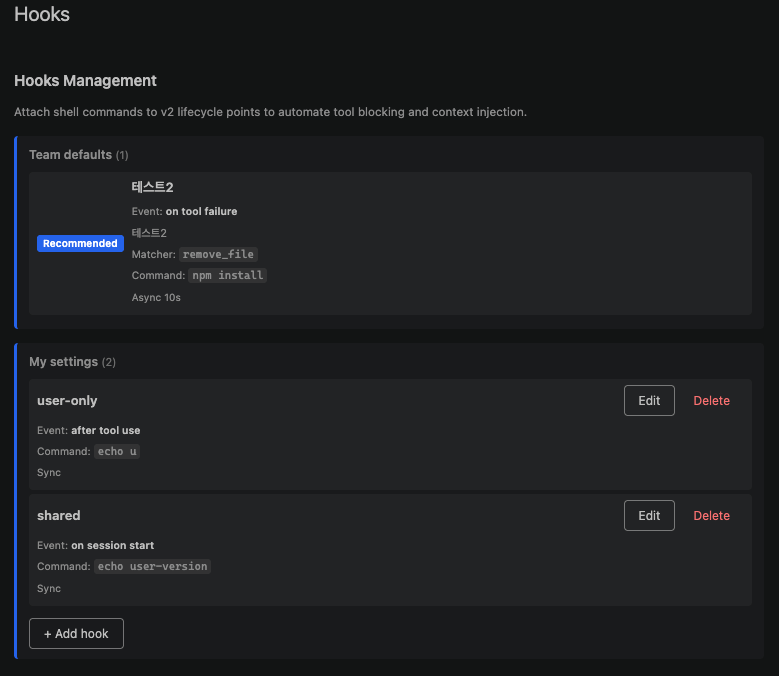
EventWhen it fires
Before tool executionJust before the AI runs a tool
After tool executionAfter a tool finishes running
On tool failureWhen a tool execution fails
Before LLM callJust before a request is sent to the AI
On session startWhen a new conversation starts

Agents

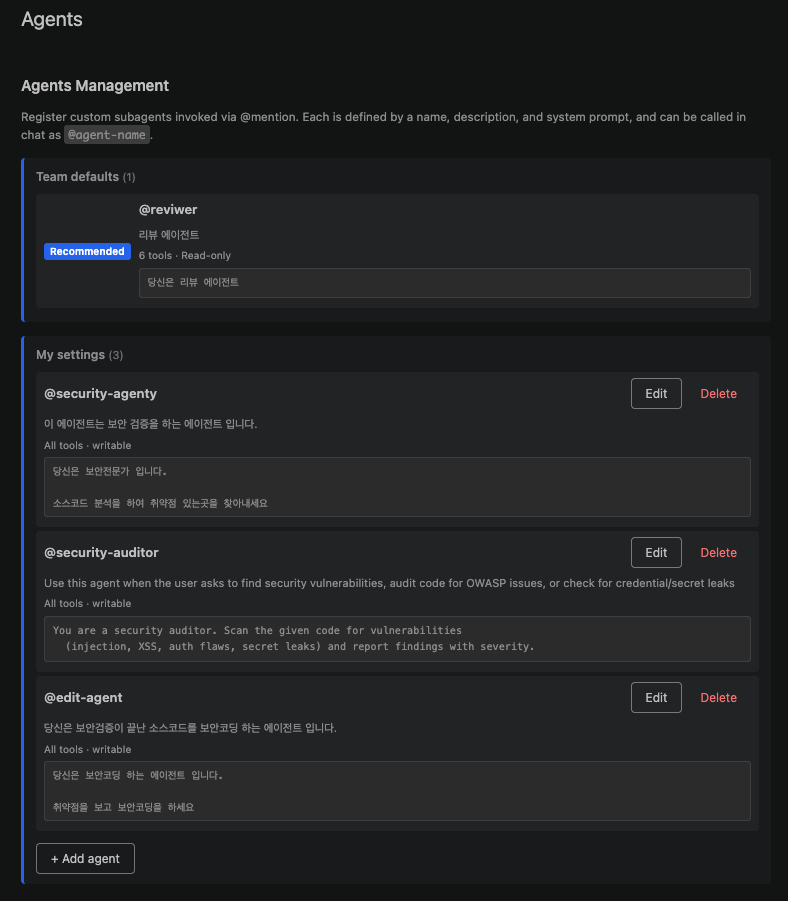
Register subagents that take on specific roles. Once registered, you can invoke them in chat with @agent-name. Agents settings
ItemDescription
NameThe call name that follows @
DescriptionWhat this agent does
System promptThe agent’s role and instructions
Allowed toolsThe tools this agent can use
Read-onlyBlocks file modification and deletion tools
Your Organization administrator can also deploy company-wide shared agents.

Skills (Skills and Rules)
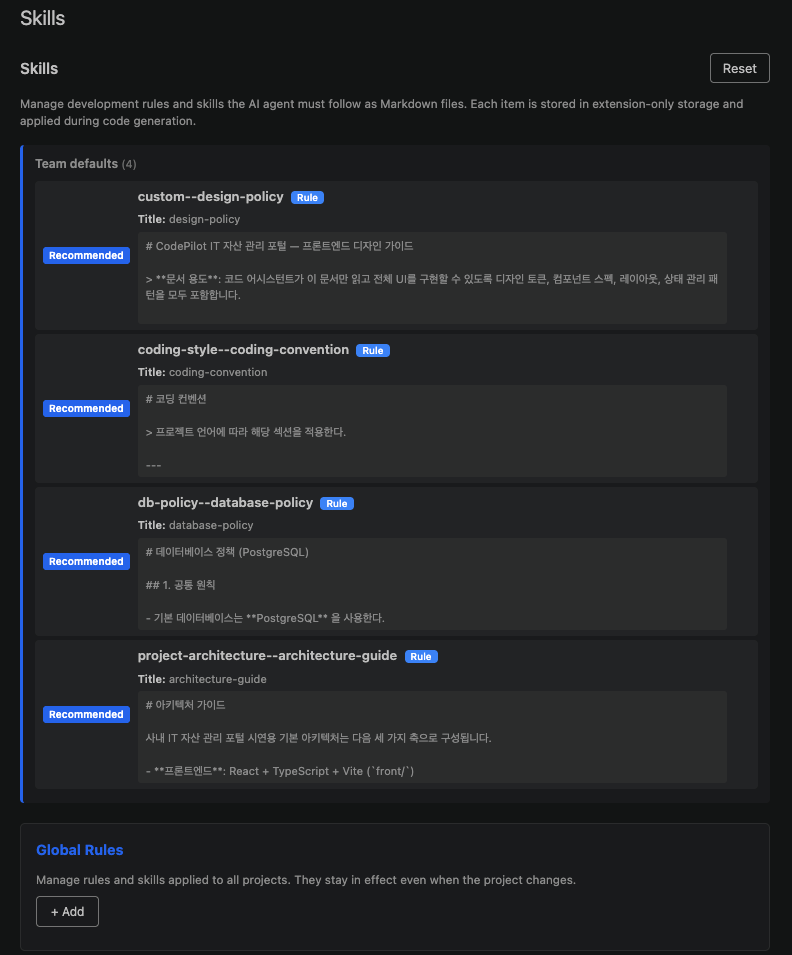
Skills settings Register, in Markdown, the team rules the AI must follow when writing code.
Write all React components as function components,
and define Props types using an interface.
The categories are divided into Global Rules, Version Control, Coding Style, Project Architecture, Dependency Policy, and Database.
TypeDescription
Local rulesApplied only on your own PC
Organization rulesRegistered by the administrator and applied to all team members
Required items among the Organization rules cannot be modified or turned off by individuals.

Security
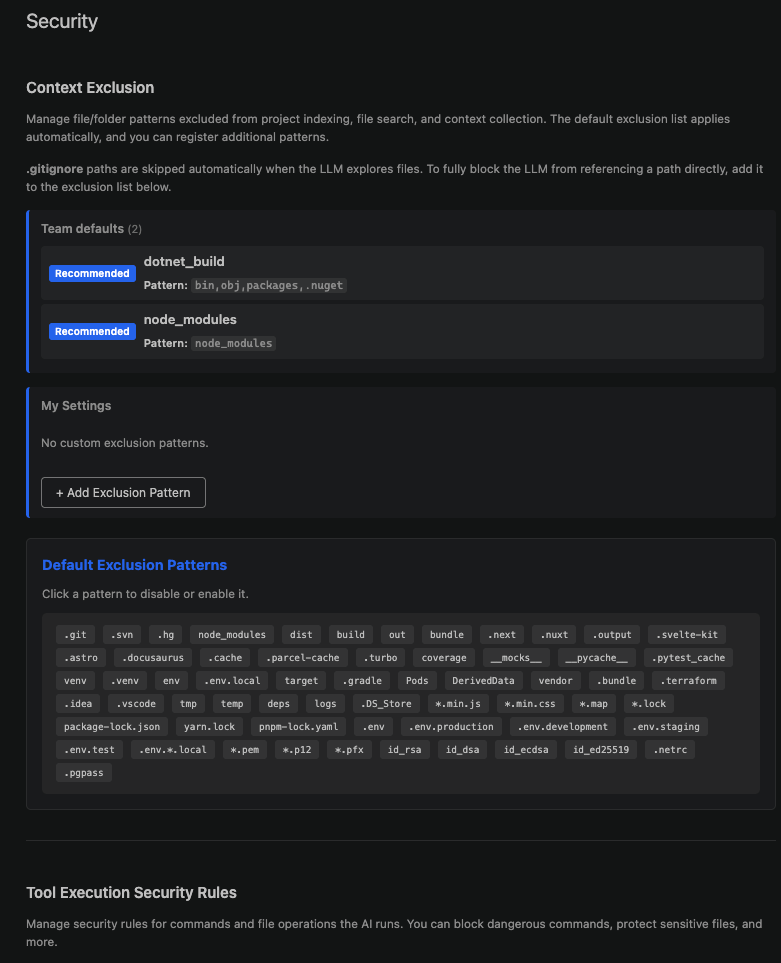
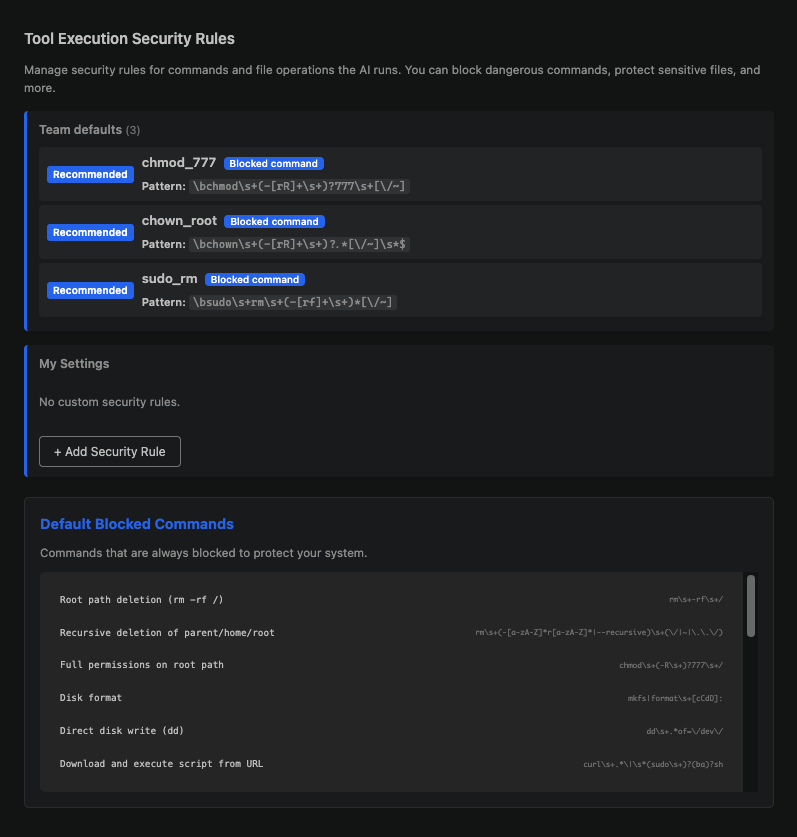
Security settings Specify the commands the AI must not run and the files it must not access.

Blocked commands

Blocks commands that destroy the system or are irreversible.
rm -rf /
DROP TABLE
git push --force
chmod 777

Protected files / exclude patterns

Specify the paths the AI is blocked from reading or modifying.
.env              ← API keys, passwords
.env.local
secrets/          ← certificates, secret keys
config/secrets.yml
Paths listed in .gitignore are automatically skipped during file exploration. To block them completely, however, add them directly to the exclude patterns.
Security settings are the last line of defense that prevents the AI from accidentally touching important files. Be sure to add your .env file to the exclude patterns.

Usage

View the memory used, the number of AI calls, the number of tool executions, and the number of files referenced in the current session.

Per-Project Settings

When you select a Project, the Team default settings are also shown, read-only, on the settings screen. For any item the Project doesn’t set separately, the Team default settings apply as-is. Project security settings
The Team default settings apply. The Organization-wide settings registered by the administrator are used as-is.
This means the administrator hasn’t created any Projects yet, or you haven’t been added as a member of the Project. Contact your administrator.
No. Your conversation is preserved, and the new Project’s settings apply from the next message onward.
Organization rules take precedence. Use local rules to complement the Organization rules.