

Individual users can use CodePilot without an organization. Connecting to an organization is an optional step for having your team’s standards applied.
1. Get an organization API key
Ask your organization administrator for an API key that starts withcpk_. The administrator issues this key from the API Key Management menu in the Admin console.
2. Join the organization from the IDE
1
Open Settings
Click the gear (⚙) icon at the top right of the chat panel to open the Settings panel.
2
Go to the Account tab
Select Account from the left menu.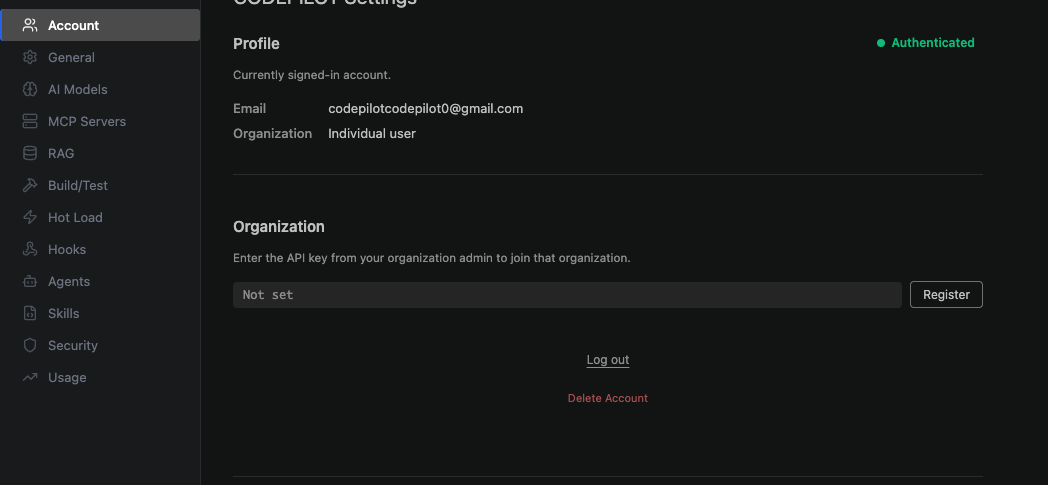
3
Enter the API key
In the input field under Connect to an organization, paste the API key you received (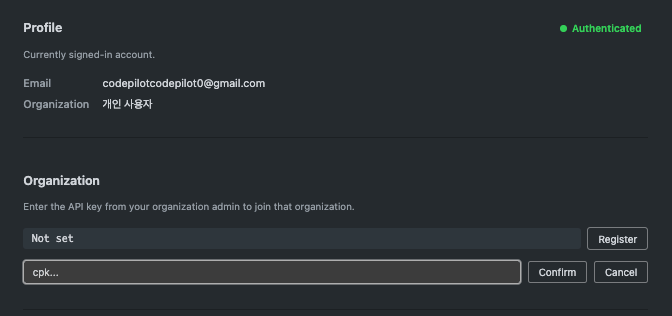
cpk_...) and click Register.4
Confirm the connection
Once you’ve joined successfully, the organization name appears in your profile area and the organization settings are downloaded automatically.
3. Select a project
If your organization has multiple projects, you need to select the one you’re working on so that its project-specific settings are applied. Open the dropdown under the Project item in the Account tab and select a project.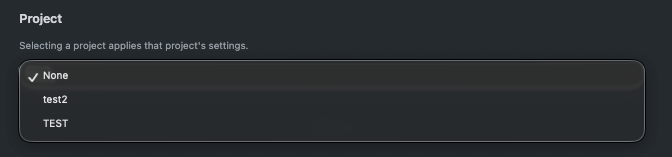
If the dropdown shows “No registered projects,” either the administrator hasn’t created a project yet or you’re not a member of that project. Ask your administrator to add you as a member.
Settings that get applied
Once you’re connected to an organization, the following items are applied automatically.
Each item is distributed at either Required or Recommended strength. Required items cannot be changed in the IDE, while Recommended items are applied as defaults but can be changed when needed.
Leaving an organization
Click Leave under Settings → Account → Connect to an organization. When you leave, organization policies no longer apply and you return to your personal settings.Next steps
Quickstart
How to send your first request and approve changes