

Open the chat panel

Click the CodePilot icon in the activity bar. CodePilot main chat screen
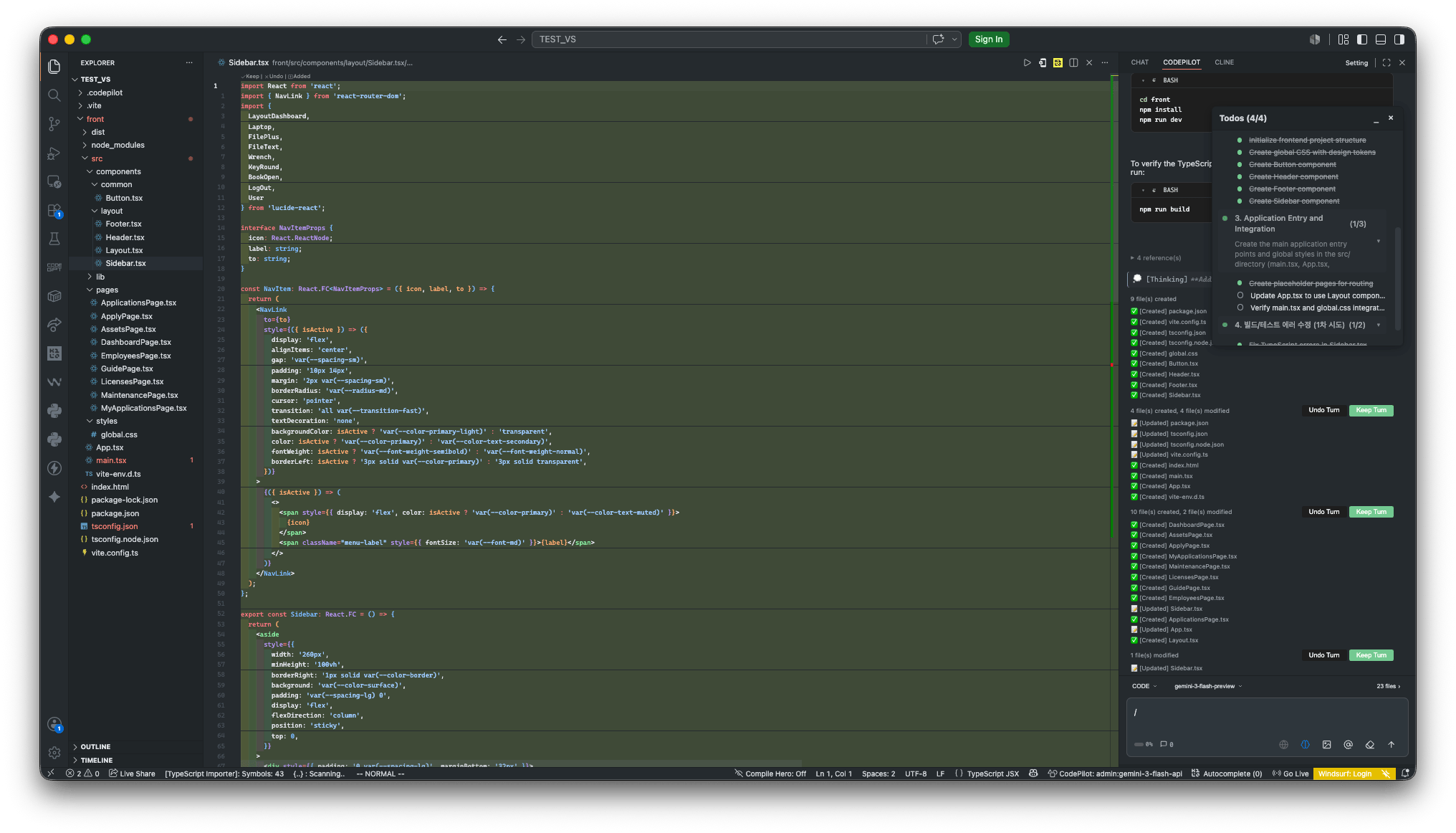
Choose a mode

From the dropdown to the left of the input box, choose the mode that fits your goal. Mode selection dropdown
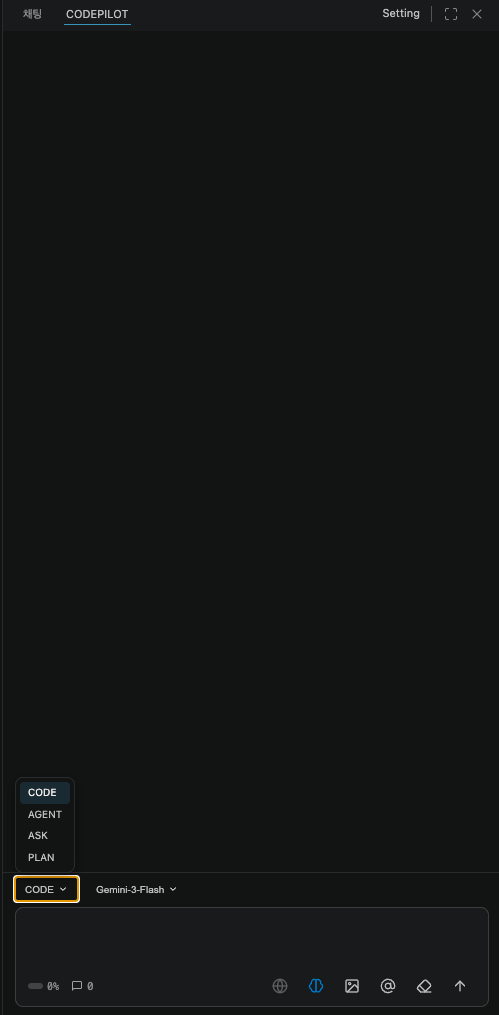
ModeFile changesPurpose
CODEOCreate, edit, and delete files; run commands
AGENTOBreak down complex tasks and handle them on its own
ASKXQuestions and analysis
PLANXDraft an implementation plan first
For the full breakdown, see the Chat modes documentation.

Try your first request

Understanding code (ASK)

Explain the current project structure. Walk me through the main directories and the role of each file.
ASK mode only answers — it doesn’t modify code. Try it first when getting your bearings in an unfamiliar codebase.

Building a feature (CODE)

Create a login form component in the src/components/ directory.
Include email and password inputs, a submit button, and validation.
CODE mode has the AI create and modify files directly.

Planning first (PLAN)

I want to add an authentication system. How should I implement JWT-based login, logout, and token refresh?
PLAN mode presents an implementation plan first without touching any files. It’s useful for checking the scope of impact before a large task.

Attaching context

Type @ in the input box to pick the context you want to hand to the AI. @ menu
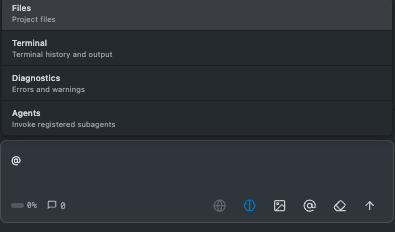
@src/api/auth.ts Improve the token expiration handling logic in this file.
Type / to use shortcut commands such as commit, review, and session management. Slash command menu
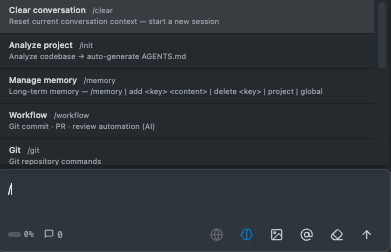
Approving / undoing changes

When the AI modifies a file, the changes are shown in the editor as an inline diff. Diff screen
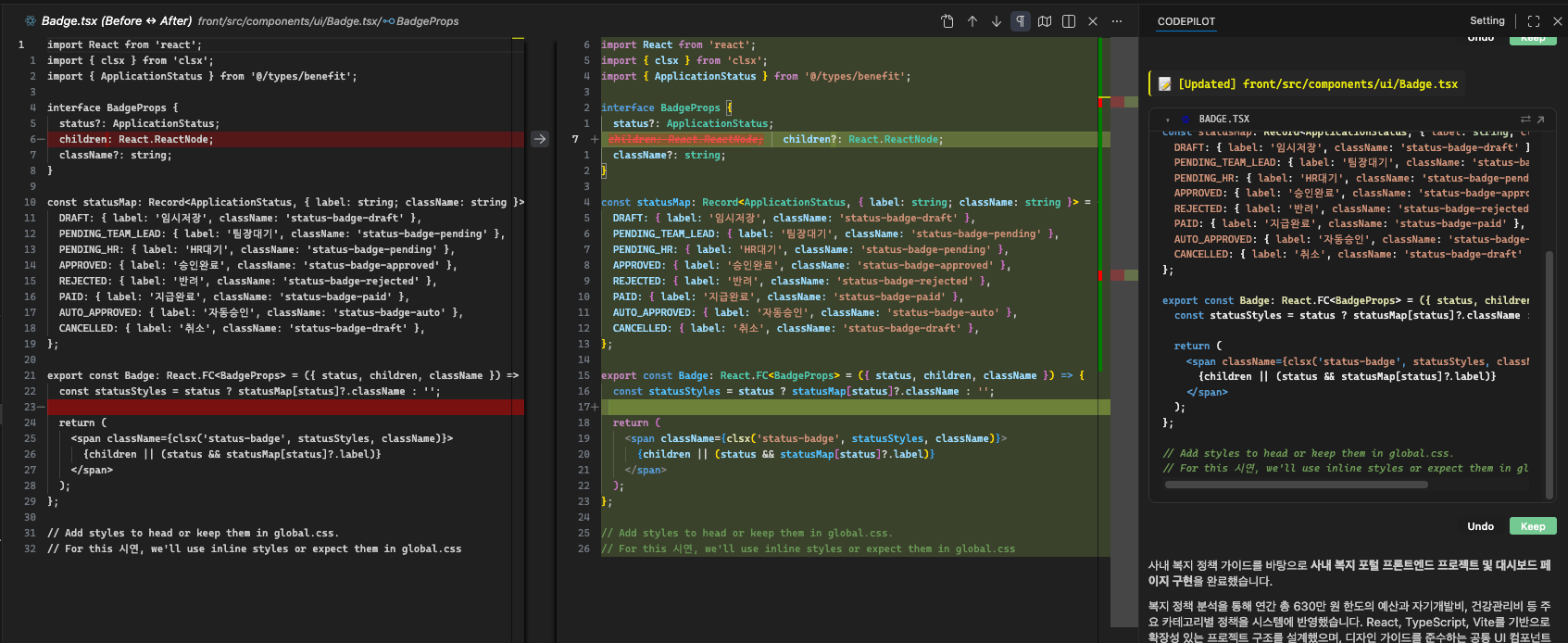
  • Keep — Apply the change.
  • Undo — Revert the change.
You can also handle everything at once in the Pending changes area at the bottom of the chat panel.
ShortcutAction
Ctrl+Enter (macOS: Cmd+Enter)Apply all changes
Ctrl+Backspace (macOS: Cmd+Backspace)Undo all changes
CODE and AGENT modes change actual files. Check your Git commit state before any important work.

Running multiple tasks at once

Large requests are automatically split into several subtasks and processed in parallel. You can track progress in real time in the task list in the chat panel. Task progress
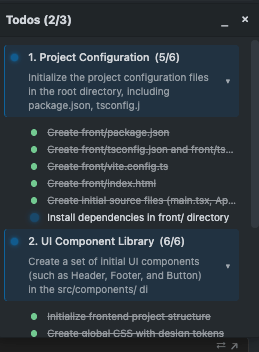
Build an internal employee benefits portal.
- A React + TypeScript frontend in the front/ directory
- A FastAPI backend in the server/ directory
- Use PostgreSQL for the database

Reviewing the results

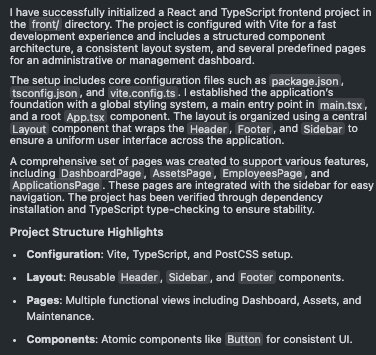
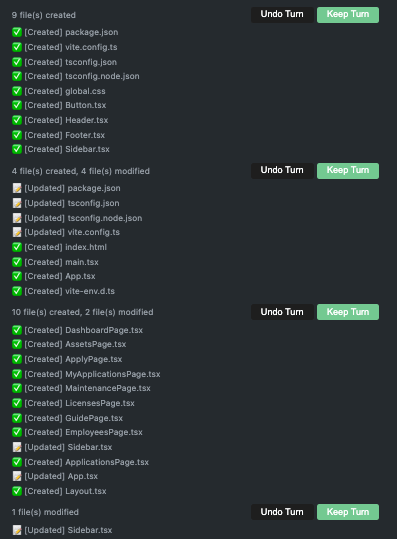
When the AI finishes, it shows a summary of what it did and a list of the files that changed. Task complete Below the response, you can confirm this turn’s changes all at once or expand the list of files the AI referenced. Referenced documents
Next steps

Chat modes

How to use CODE / AGENT / ASK / PLAN

Key features

Automatic error fixing, security guardrails, RAG

Settings

AI models, build verification, security settings