

When an administrator (super) enables the providers and models the organization will use, members simply pick from that list. Registering a model that isn’t on the list — via Custom Models — is only for standalone setups used without signing in.
1. Get a Gemini API key
You can get an API key from Google for free.1
Go to Google AI Studio
In your browser, go to aistudio.google.com/apikey and sign in with your Google account.
2
Create an API key
Click the Create API key button. If it asks you to choose a project, pick any project or create a new one.
3
Copy the key
A string starting with
AIza is generated. Click the Copy button and keep it somewhere safe.Gemini includes a free usage tier. You may be charged if you exceed it, so check your billing settings and limits in Google AI Studio.Coding work sends a large amount of context per turn. On the free or a low tier, you may frequently hit per-minute request/token rate limits, causing responses to stall or slow down. For real development work, a paid tier is recommended.
2. Select a model and register an API key
Register the key you obtained in Settings.1
Open AI model settings
Click the gear (⚙) icon at the top right of the chat panel, then select AI Models from the left menu.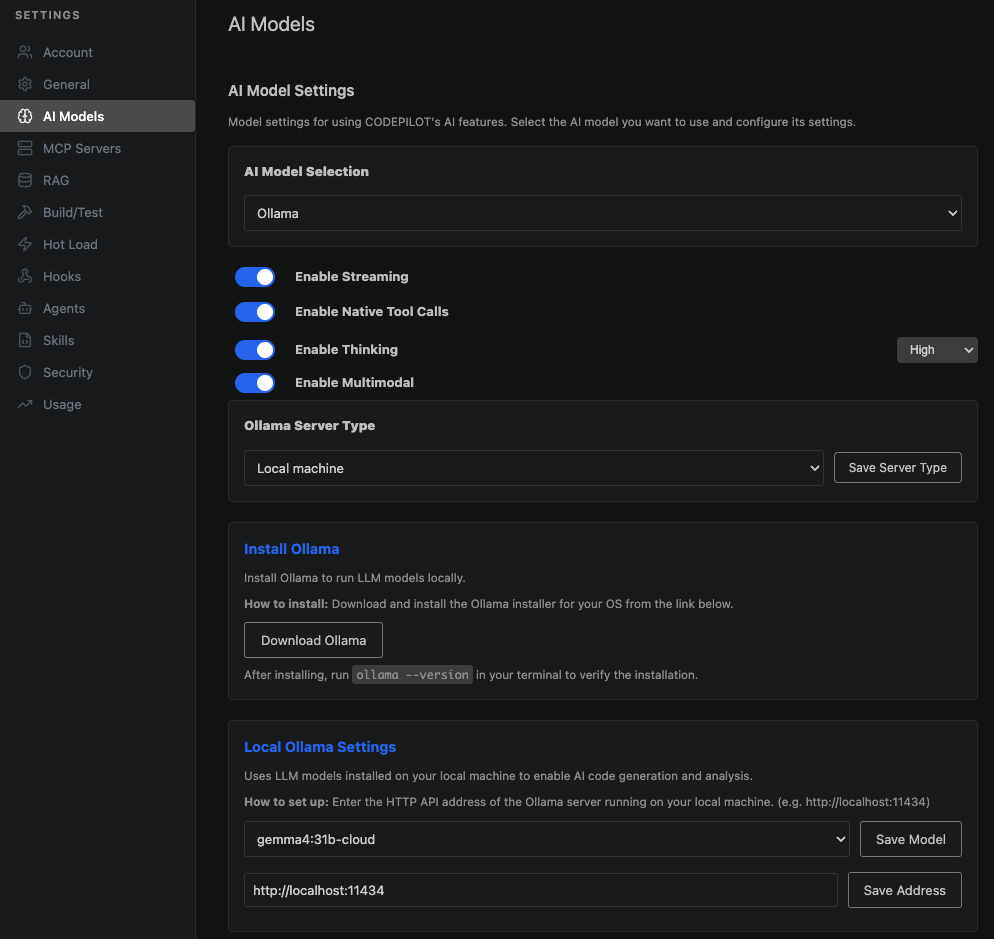
2
Select an AI model
In the Select AI Model dropdown, choose the provider you want to use. Google is included by default, so you can leave it as-is.
3
Choose a model
In the model settings area below (Configure the API settings for the selected model), open the Model dropdown and choose the model to use. (e.g.,
Gemini 3.0 Flash)4
Register a personal API key
Set the API Key item to Personal API Key, then paste the key you copied in step 1 into the Personal API Key field and click Save.
3. Switching to the admin key
If your administrator has registered an API key for the organization, a dropdown to choose between the admin key and a personal key appears under the API Key item. Switching to the admin key lets you start using it right away without your own key.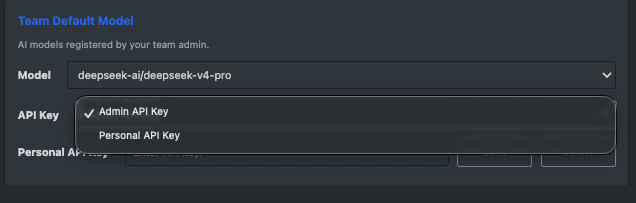
When both an admin key and a personal key exist, Admin API Key is selected by default. If no keys are registered at all, it shows No keys registered — in that case, ask your administrator or register a personal key.
4. Register a custom model (standalone only)
This method is only for standalone (BYOK) setups used without signing in. Use it to register a model that isn’t in the provider list above, specifying its endpoint directly. The Custom Models section does not appear when you’re signed in to an organization.
1
Add a model
Under Custom Models in Settings → AI Models, click + Add Model.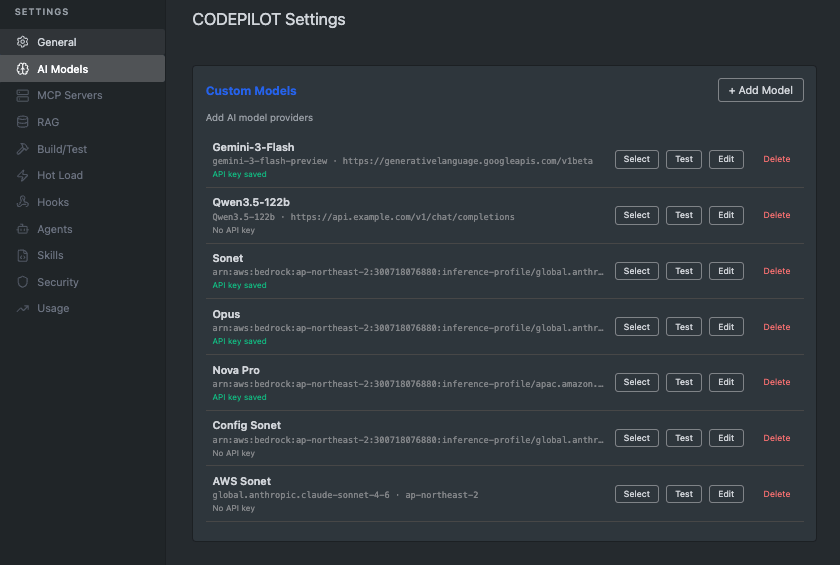
2
Select a provider
In the Provider dropdown, choose Google Gemini. Once you select it, the API Endpoint is filled in automatically. Leave this value as-is.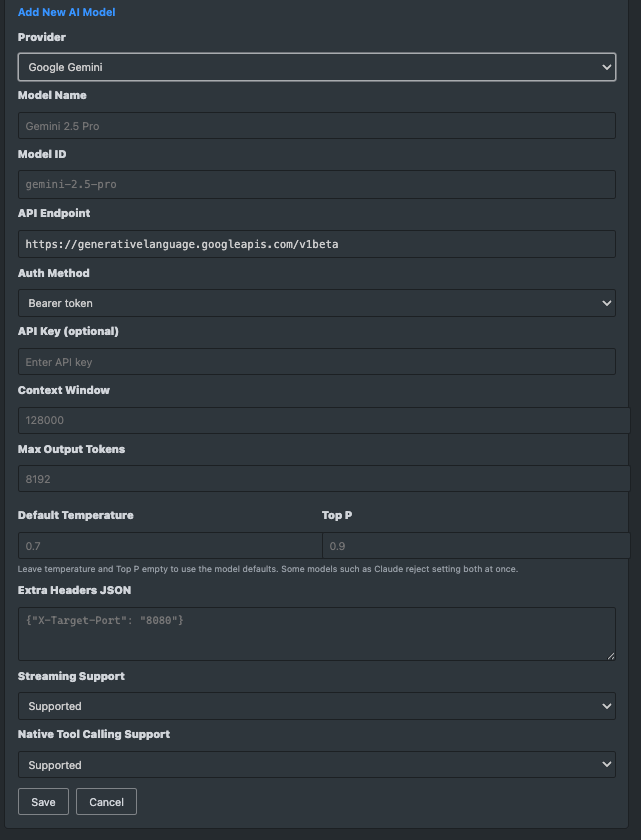
3
Enter the model details
Type the two values below yourself.
4
Paste the API key and save
Paste the key you copied in step 1 into the API Key field. Leave everything else (auth method, context window, temperature, extra headers, etc.) at its default and click Save.
5
Test, then select
Click Test next to the saved model to confirm Connection OK, then click Select to put it in the ✓ Active state.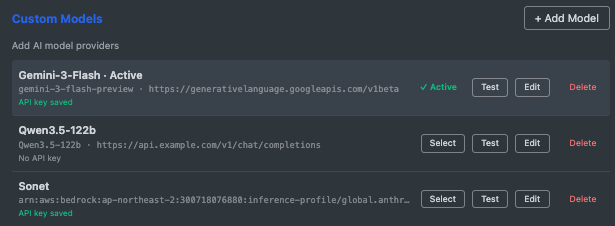
Using a different provider
Choose a different provider in the Provider dropdown. The steps are the same as for Gemini — only where you get the API key differs.Model IDs change whenever a provider releases a new model. If the value above doesn’t work, check the provider’s official documentation for the current model ID.
Troubleshooting
No response in chat
No response in chat
The API Key item may be set to Personal API Key without a saved key, or there may be no admin key available. Check that you entered your personal key and clicked Save.
It shows "No keys registered"
It shows "No keys registered"
Neither an admin key nor a personal key is registered. Issue and register a personal key, or ask your administrator to register an organization key.
The model I want isn't in the list
The model I want isn't in the list
Your administrator (super) may not have enabled that provider. Ask your administrator. In a standalone setup used without signing in, you can register it yourself via Custom Models.
A custom-model test shows "Connection failed"
A custom-model test shows "Connection failed"
Check the following, in order.
- API key — make sure no leading/trailing whitespace got copied in, and paste it again.
- Model ID — it must be the exact value defined by Google, like
gemini-3.1-pro-preview. Don’t confuse it with the model name (Gemini 3.1 Pro). - API endpoint — reselecting the provider restores the correct value.
- Network — a corporate firewall may be blocking outbound API calls. Contact your administrator.
Quota exceeded error
Quota exceeded error
You may have used up the Gemini free tier. Check your usage and billing settings in Google AI Studio.
Next steps
Quickstart
Send your first request and approve changes right away
Connect to an organization
Using it as a team? Join an organization to apply administrator policies