

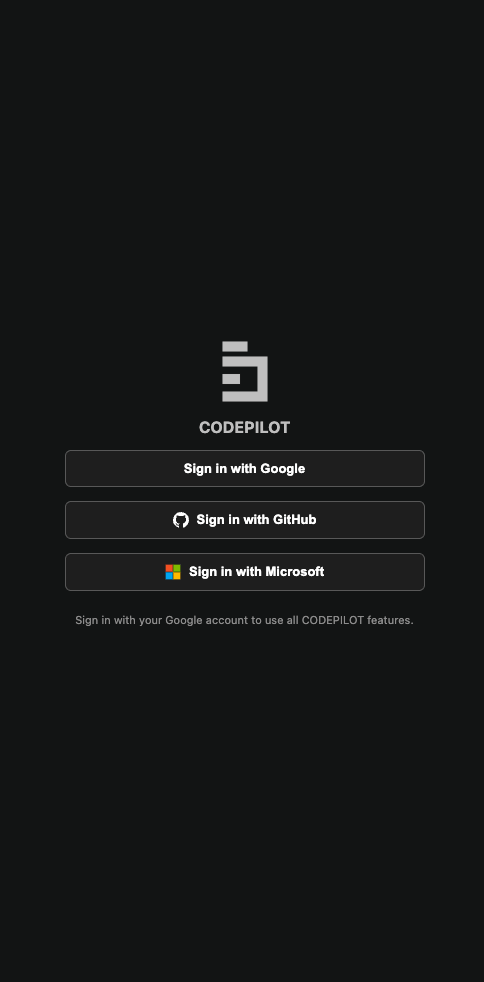
With social login you also enter a license key once, after signing in. The license key method in the table above refers to standalone environments where you don’t sign in at all.
Social login (default)
1
Click the sign-in button
Click the Sign in with Google button. Depending on your organization’s configuration, GitHub and Microsoft buttons may also appear.
2
Authenticate in the browser
Your default browser opens and shows the account authentication screen. Once you complete authentication, you’ll see the message “Signed in — return to VS Code to continue working.”
3
Return to VS Code
Back in VS Code, the sign-in screen disappears and the License key entry screen appears.
License key entry (after social login)
Once you finish authenticating with social login, the License key entry screen appears. You must enter the license key issued to your organization before the chat panel becomes active.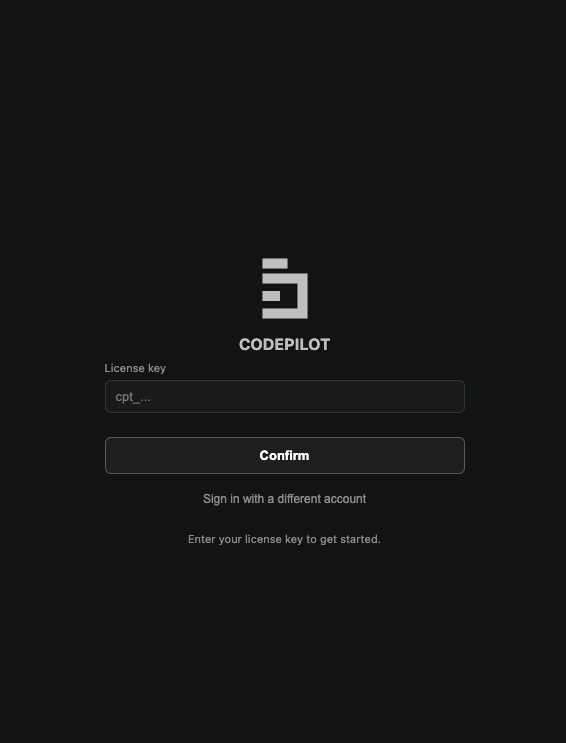
1
Get your license key ready
Have the license key starting with
cpt_ that your organization administrator gave you at hand. If you don’t have one, ask your administrator for it.2
Enter the key
Paste the license key into the input field and click Confirm.
3
Activation complete
Once the key is verified, the entry screen disappears and the chat panel becomes active.
License keys are issued per organization. If your key is invalid or has expired, contact your organization administrator.
Username/password sign-in (on-premises)
In on-premises deployments, the sign-in screen shows an email and password entry form.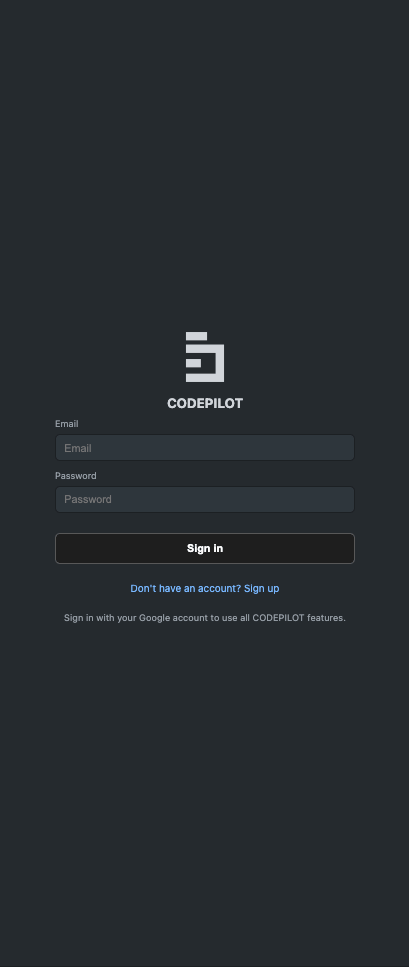
- Sign in — Enter the email and password you were issued.
- Sign up — If you don’t have an account, click “Don’t have an account? Sign up” and register with your name, email, and password.
If you forget your password, contact your organization administrator. The administrator issues a temporary password from the Admin console. Sign in with the temporary password you receive, then change your password.
License key registration (standalone)
In environments that use AI models registered directly without a backend server, you register a license key instead of signing in.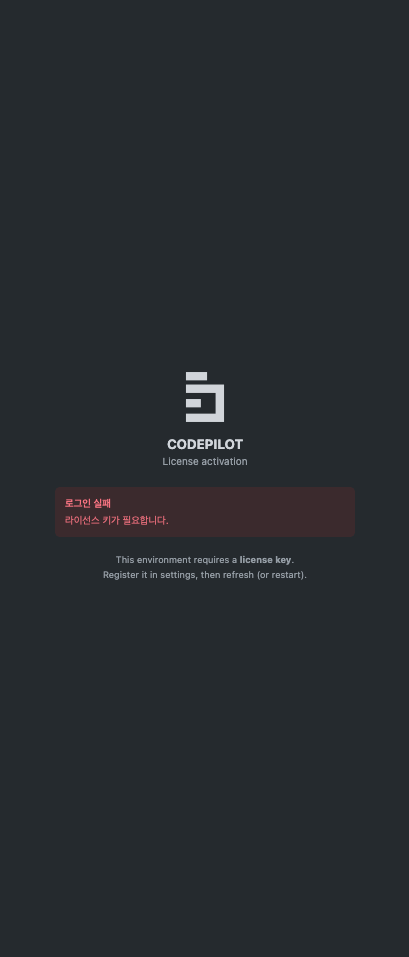
1
Open the Command Palette
Ctrl+Shift+P (macOS: Cmd+Shift+P)2
Register the license key
Run CodePilot: Register License Key and select the license key file you received.
3
Register AI models
In Settings → AI Models, register the models and API keys you want to use.
Server address configuration
In on-premises environments, you must first specify the server address to connect to. In VS Code Settings (Ctrl+,), search for codepilot and enter the following items.
Signing out
Run CodePilot: Sign Out from the Command Palette, or click the Sign out button in Settings → Account tab.Next steps
Connect an AI model
Choose an AI model, or register your own API key, and start using it right away